
NOMone Software
4.0
ratings0 MB
SizeVerified
SCREENSHOTS (4)
About the app
Control NOMone VR Browser using your old Android phone or tablet.
Get NOMone VR Browser:
https://play.google.com/store/apps/details?id=com.nomone.vrbrowser
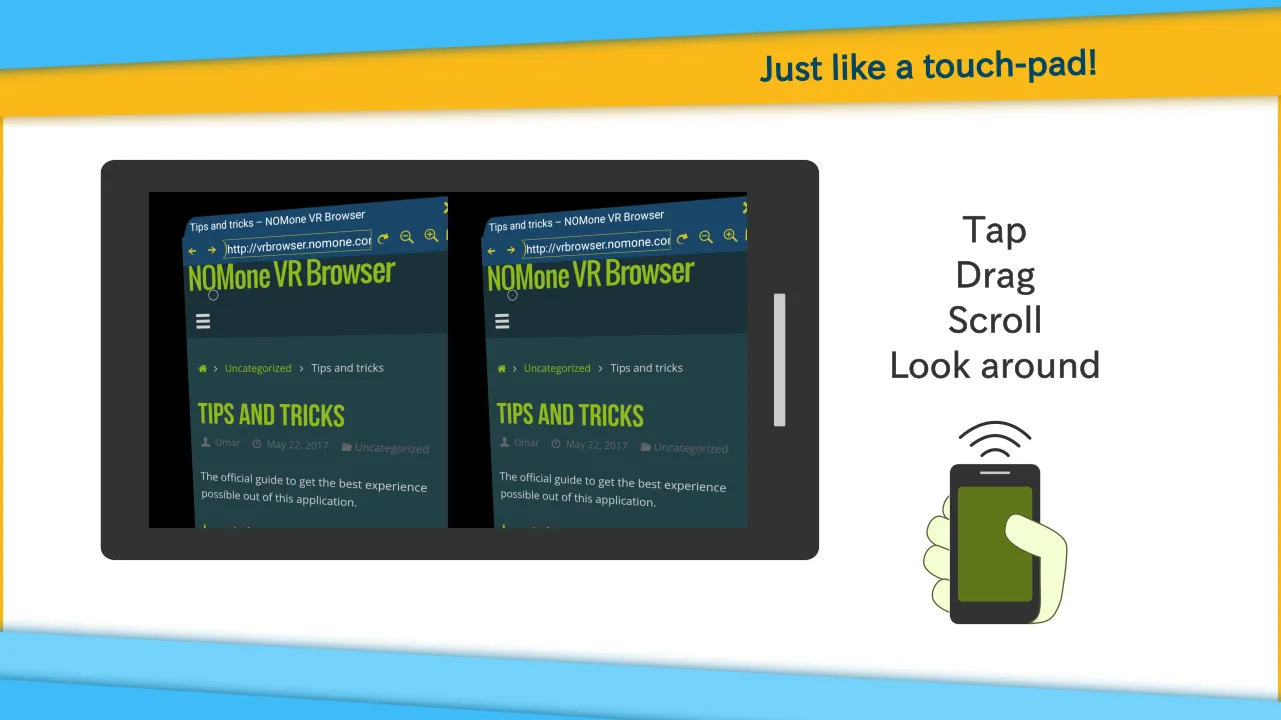
Of all the input devices supported by NOMone VR Browser, using another phone as a remote is among the most comfortable experiences. You can control every aspect of the browser with minimal effort. It works like a typical touch-pad:
• Drag to move the cursor.
• Tap then drag to perform a drag.
• Tap then long-press to perform a long press.
• Use the volume keys to scroll up and down.
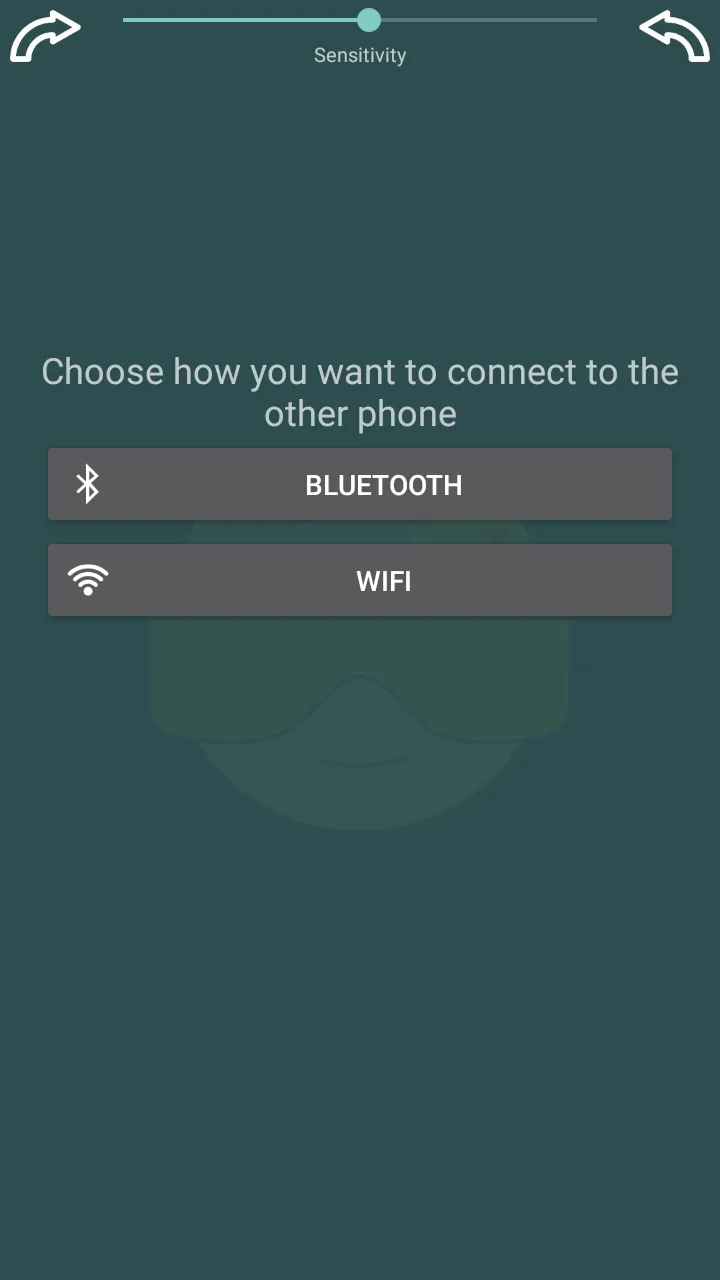
You can connect the two phones using Wifi or Bluetooth:
1. Bluetooth
• On the phone running the browser:
- Turn on Bluetooth.
• On the phone running the remote app:
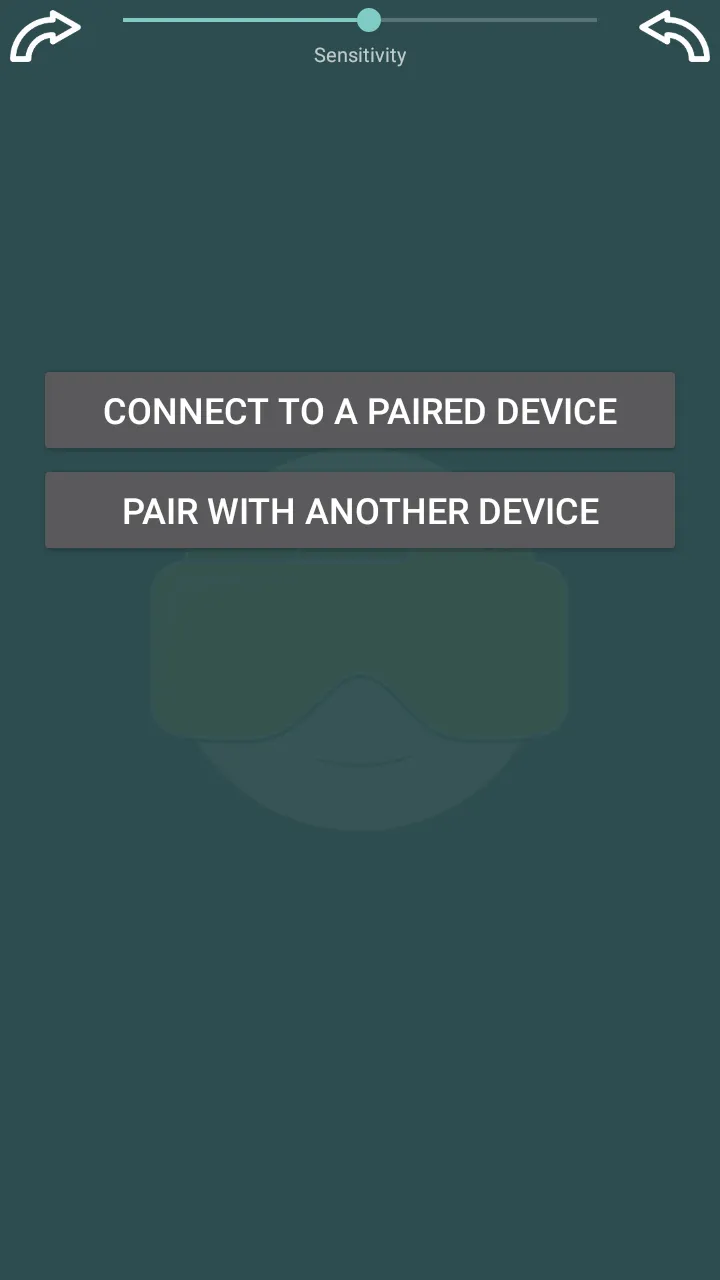
- Select 'Bluetooth', then select 'Pair with another device'.
- Search for devices, and pair with the phone running the browser.
- Go back to the app and select 'Connect to a paired device'.
That's it! Now you can use the remote device to control the virtual cursor and/or looking-around (if enabled) on the browser phone.
2. Wifi
• On the phone running the browser:
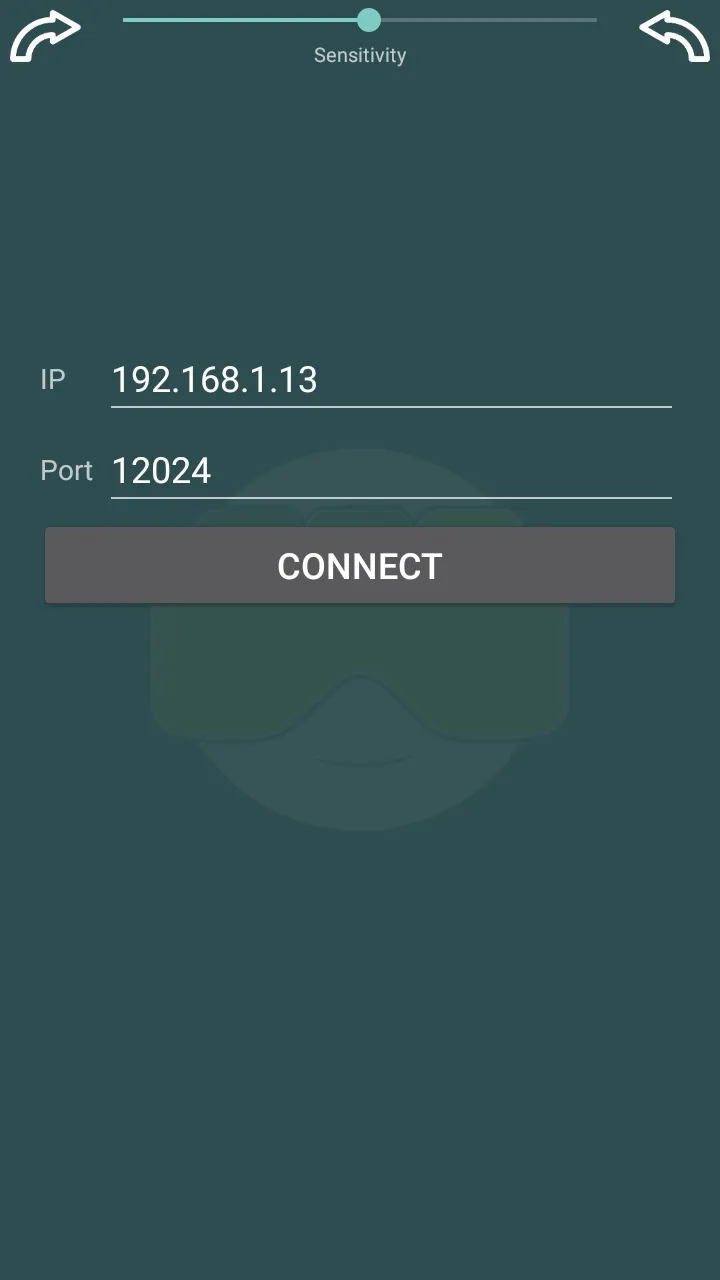
- From the menu, choose "Remote control". The remote control configuration should now appear.
- Enable remote control.
- Remember your IP (should be written in green),
• On the phone running the remote app:
- Make sure you are connected to the same WIFI network as the browser phone.
- Enter the IP address and press connect.
That's it! Now you can use the remote device to control the virtual cursor and/or looking-around (if enabled) on the browser phone.
If you have any issues or suggestions, please email us:
[email protected]
Tools
Ratings
0
0 total ratings
5
73%
4
10%
3
4%
2
3%
1
10%
REVIEWS
No reviews yet. Be the first one to review this app
'%20fill-rule='evenodd'%20clip-rule='evenodd'%20d='M8.04878%200.118571C9.10796%20-0.198465%2010.2321%200.132893%2010.9526%200.961509L18.7058%209.9036H22.0709C23.0433%209.90386%2023.8429%2010.7032%2023.843%2011.6757V13.1309H23.8497C23.8497%2013.4983%2023.5476%2013.8014%2023.1803%2013.8015H19.9372V33.9548C19.9372%2034.423%2019.5703%2034.7975%2019.1021%2034.7977H17.142C15.91%2034.7977%2014.9156%2033.8036%2014.9154%2032.5644V28.0251C13.5538%2028.5582%2012.3722%2028.7169%2010.9963%2028.7169C6.45689%2028.7169%203.74677%2025.6897%203.74677%2020.6099V13.8015H1.77319C0.800641%2013.8015%200.000280942%2013.0091%200%2012.0294V10.573C0.000219737%2010.2057%200.303205%209.9036%200.670545%209.9036H13.5676L5.13039%201.85482C4.82078%201.55938%204.94365%201.04032%205.35428%200.917851L8.04878%200.118571ZM8.78425%2013.8082V20.611C8.78438%2023.1974%209.8151%2024.35%2012.1135%2024.35C12.9637%2024.3499%2014.1167%2024.1489%2014.902%2023.7959V13.8082H8.78425Z'%20fill='white'/%3e%3c/svg%3e)
Permissions
Storage: access photos, media, and files on your device
Internet: use your internet connection
Phone: make and manage phone calls
Curated for YouSee all






Scan to download on PhonePe Appstore