
Hamed SKY
4.0
1 ratings8 MB
SizeVerified
SCREENSHOTS (5)
About the app
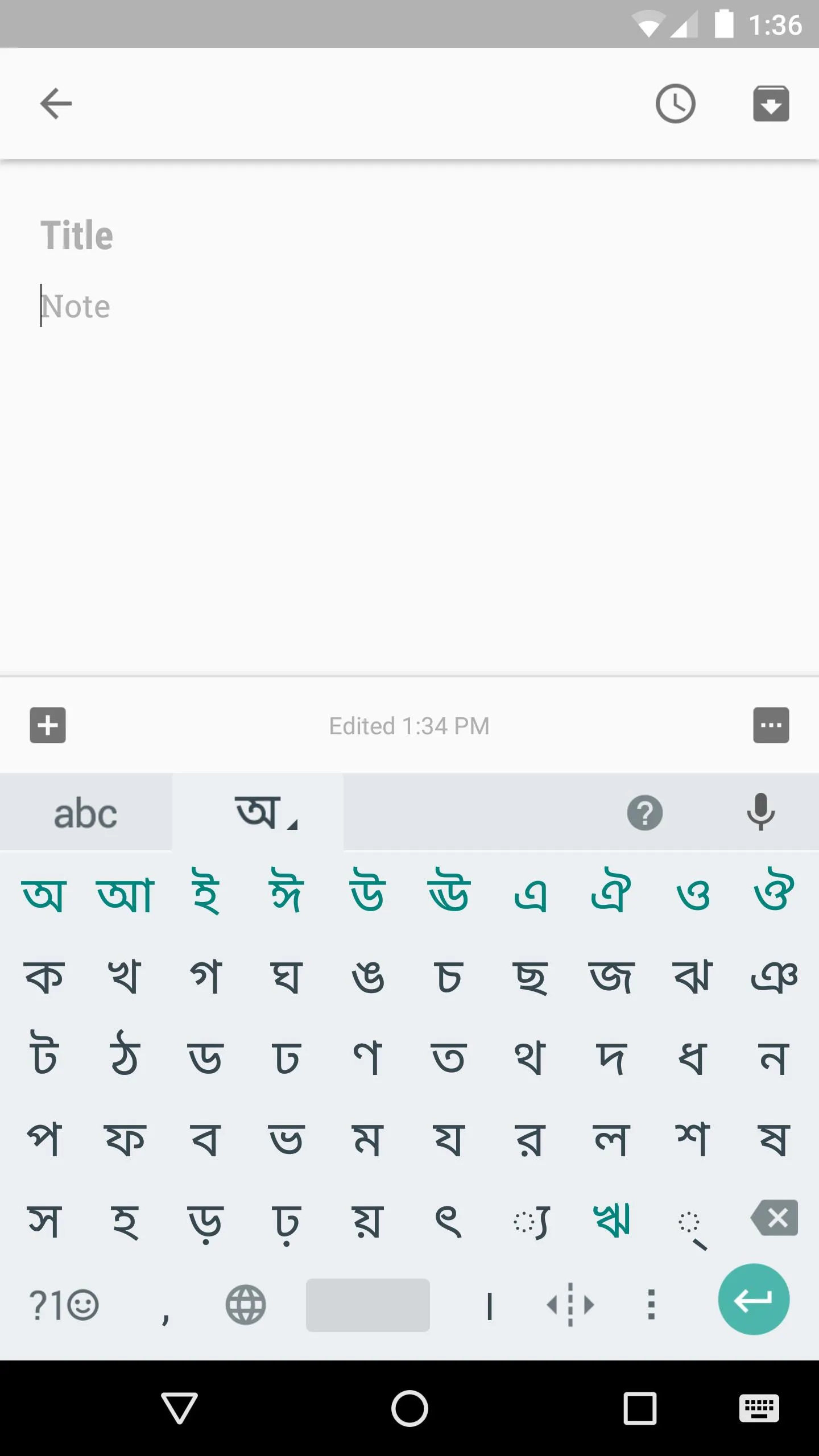
Indic Keyboard allows you to type messages, update on social networks or compose emails in your own native language on your Android phone. Currently it includes the following keyboards:
- English keyboard
- Assamese keyboard (অসমীয়া)
- Bengali keyboard (বাংলা)
- Gujarati keyboard (ગુજરાતી)
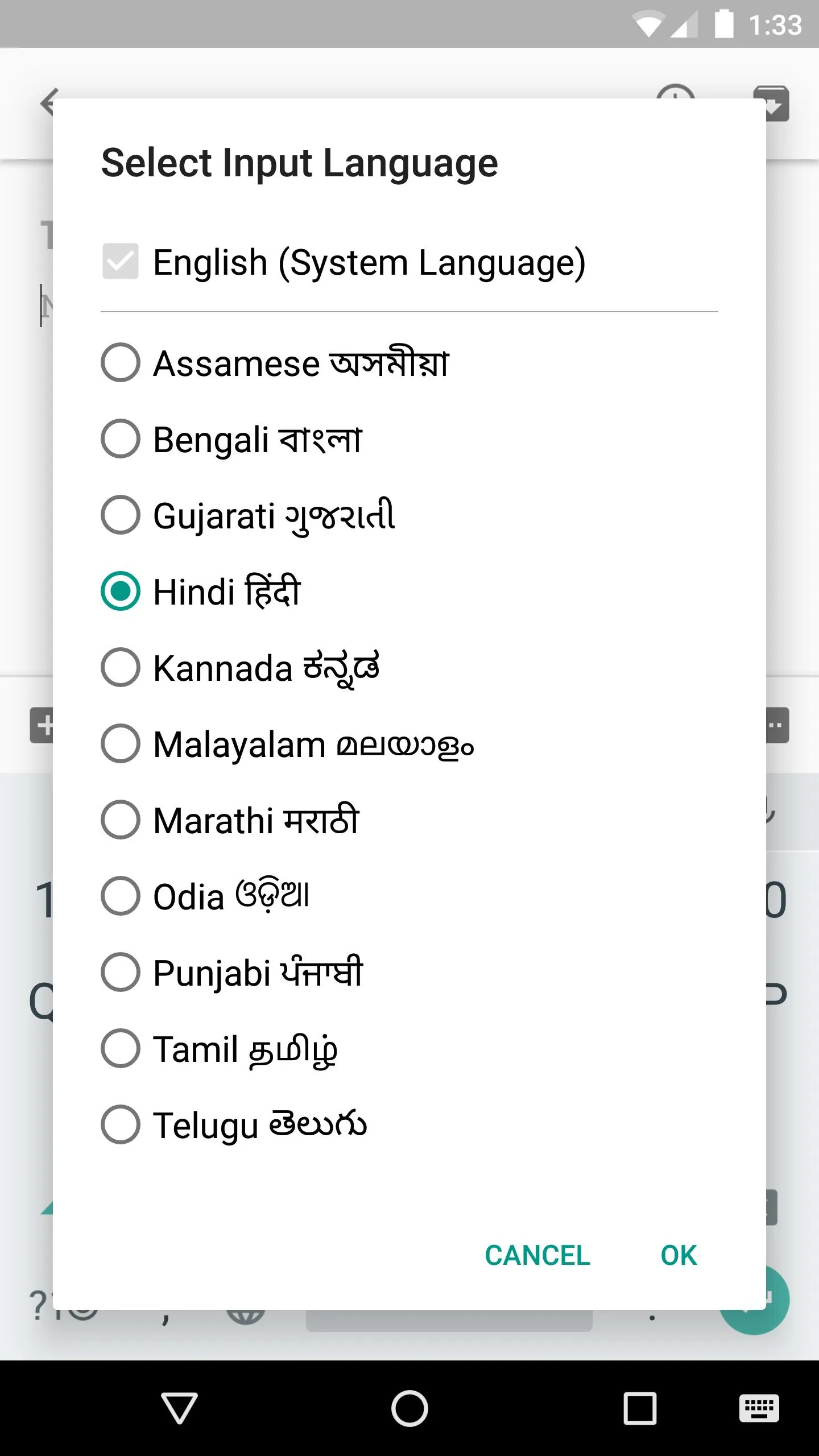
- Hindi keyboard (हिंदी)
- Kannada keyboard (ಕನ್ನಡ)
- Malayalam keyboard (മലയാളം)
- Marathi keyboard (मराठी)
- Odia keyboard (ଓଡ଼ିଆ)
- Punjabi keyboard (ਪੰਜਾਬੀ)
- Tamil keyboard (தமிழ்)
- Telugu keyboard (తెలుగు)
On your phone, if you can read your language in its native script above, you may install and use Indic Keyboard to input your language; otherwise your phone may not support your language.
Indic Keyboard supports different modes of input:
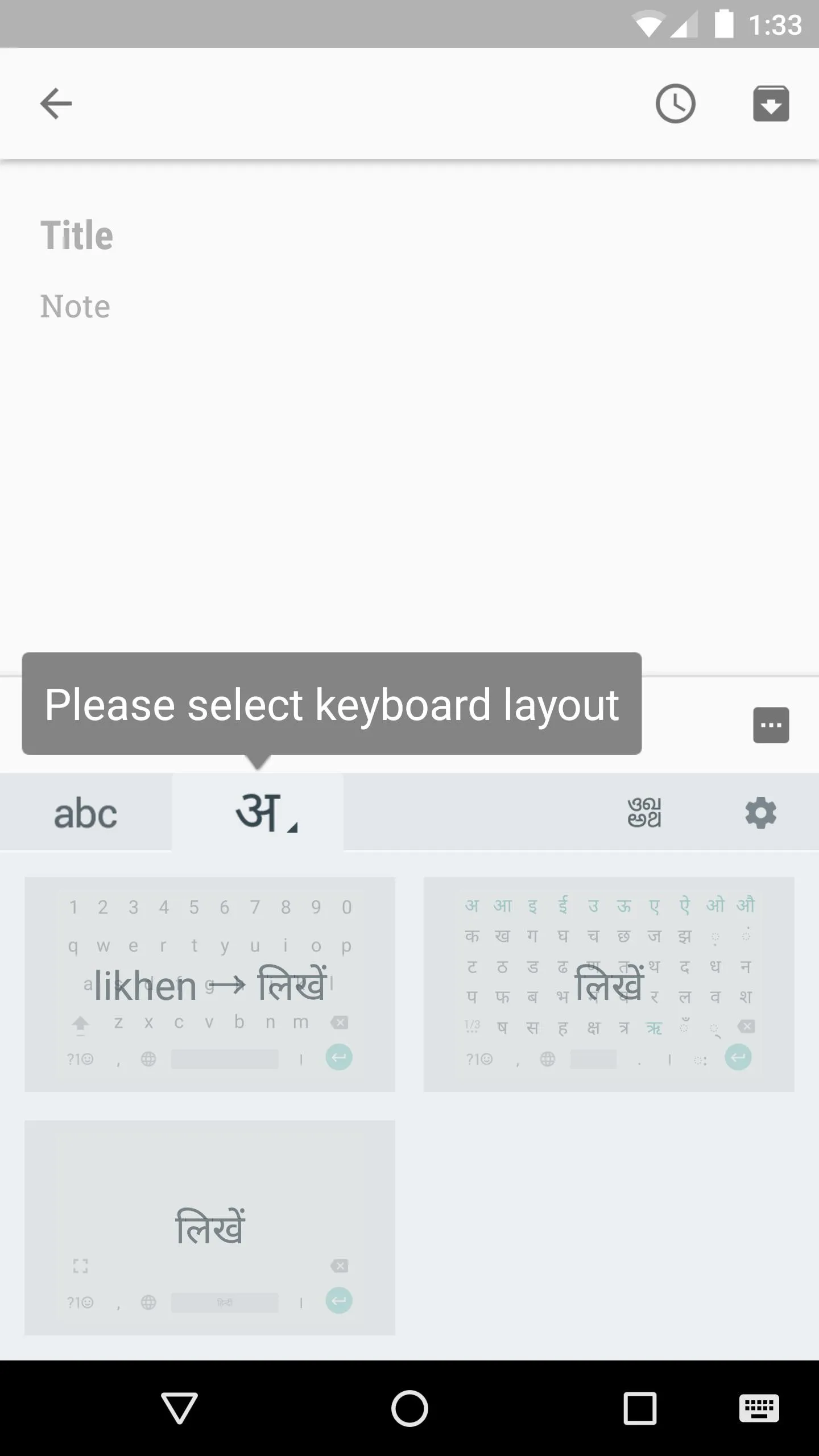
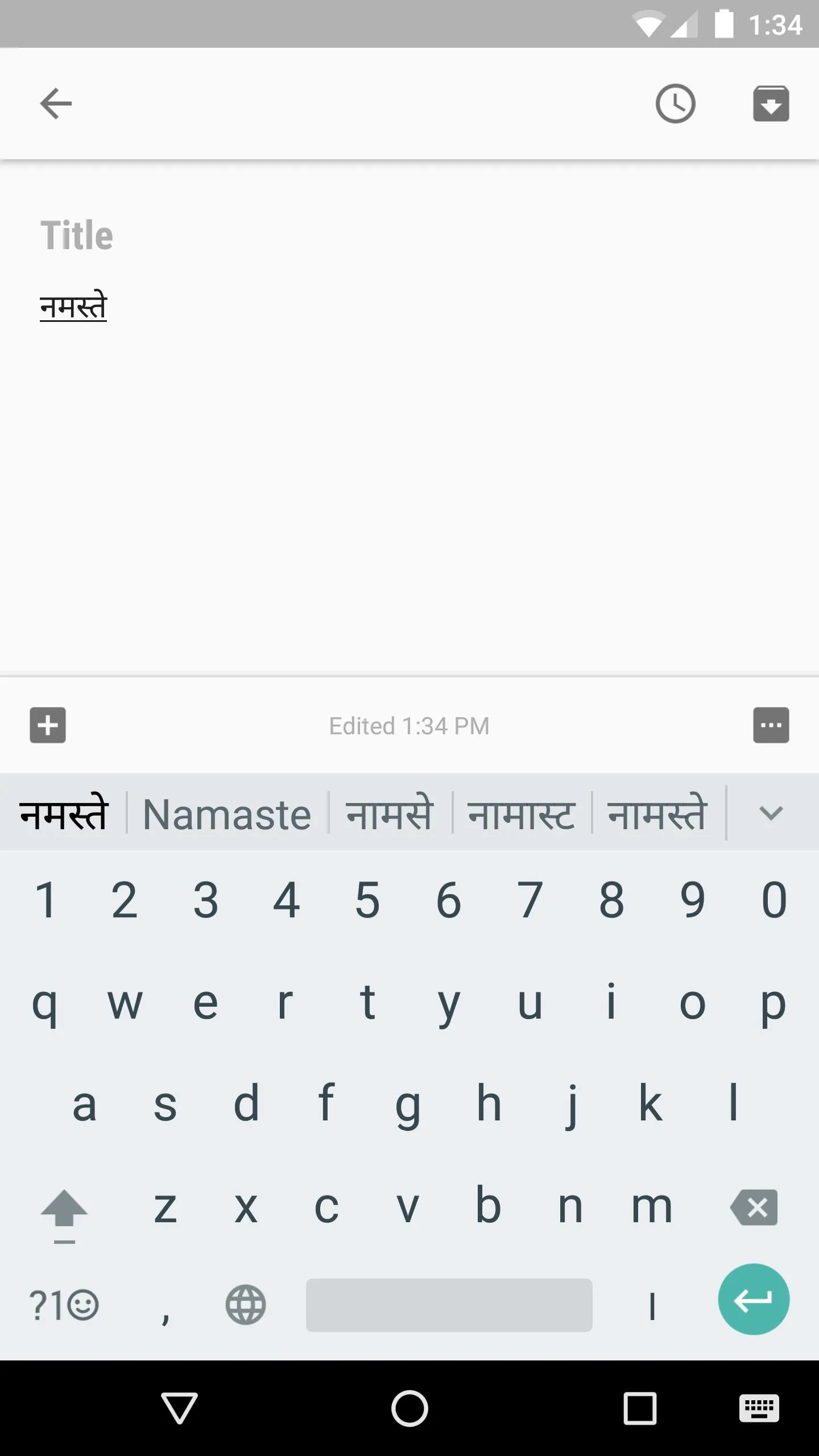
- Transliteration mode - Get output in your native language by spelling out the pronunciation using English letters (For example, “namaste“ -> “नमस्ते“.)
- Native keyboard mode - Type directly in native script.
- Handwriting mode (currently available for Hindi only) - Write directly on your phone screen.
- Hinglish mode - If you choose “Hindi” as an input language, the English keyboard will suggest both English and Hinglish terms.
How can I enable it and set it as the default keyboard?
- On Android 5.x and newer versions:
Open Settings -> Language & Input, under “KEYBOARD & INPUT METHODS” section, go to Current Keyboard -> Choose Keyboards -> Check “Indic Keyboard” -> back to “Language & input” -> Current Keyboard -> Select “English & Indic Languages (Indic Keyboard)”When typing in an input box, you can also change the default input method by clicking the keyboard icon on the bottom right corner of the screen.
- On Android 4.x:
Open Settings -> Language & Input, under “KEYBOARD & INPUT METHODS” section, check Indic Keyboard, then click Default and select “Indic Keyboard” in the “Choose input method” dialog.
When typing in an input box, you can also change the default input method by selecting “Choose input method” in the Notification area.
Productivity
Ratings
4
1 total ratings
5
0%
4
100%
3
0%
2
0%
1
0%
REVIEWS
Gada Narayana gupta
10/02/2026
?? ?? ??? ?? ?????? ???? ??? ???? ?? ?? ?? ???? ?????? ??? ???????
'%20fill-rule='evenodd'%20clip-rule='evenodd'%20d='M8.04878%200.118571C9.10796%20-0.198465%2010.2321%200.132893%2010.9526%200.961509L18.7058%209.9036H22.0709C23.0433%209.90386%2023.8429%2010.7032%2023.843%2011.6757V13.1309H23.8497C23.8497%2013.4983%2023.5476%2013.8014%2023.1803%2013.8015H19.9372V33.9548C19.9372%2034.423%2019.5703%2034.7975%2019.1021%2034.7977H17.142C15.91%2034.7977%2014.9156%2033.8036%2014.9154%2032.5644V28.0251C13.5538%2028.5582%2012.3722%2028.7169%2010.9963%2028.7169C6.45689%2028.7169%203.74677%2025.6897%203.74677%2020.6099V13.8015H1.77319C0.800641%2013.8015%200.000280942%2013.0091%200%2012.0294V10.573C0.000219737%2010.2057%200.303205%209.9036%200.670545%209.9036H13.5676L5.13039%201.85482C4.82078%201.55938%204.94365%201.04032%205.35428%200.917851L8.04878%200.118571ZM8.78425%2013.8082V20.611C8.78438%2023.1974%209.8151%2024.35%2012.1135%2024.35C12.9637%2024.3499%2014.1167%2024.1489%2014.902%2023.7959V13.8082H8.78425Z'%20fill='white'/%3e%3c/svg%3e)
Permissions
Storage: access photos, media, and files on your device
Internet: use your internet connection
Phone: make and manage phone calls
Developer Info
Curated for YouSee all






Scan to download on PhonePe Appstore