4.0
ratings8 MB
SizeVerified
SCREENSHOTS (2)
About the app
App Name: Floating Image or FloatingImg
Short Description: Keep images always on screen! FloatingImg overlays PNGs for art, gaming & productivity. Simple, movable & resizable. Your visual multi-tool!
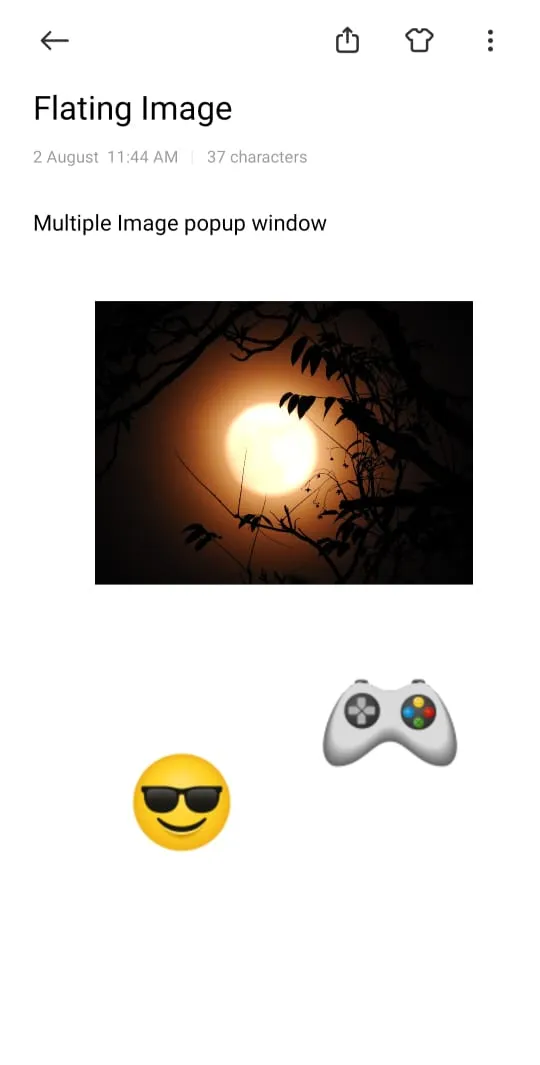
Ever wished you could keep an image visible while working in other apps? FloatingImg makes it possible! Seamlessly overlay transparent PNG images on your screen, creating a persistent, resizable, and movable reference layer. Whether you're drawing, designing, studying, gaming, or just need quick visual access, FloatingImg enhances your mobile workflow.
Step-by-Step Guide:
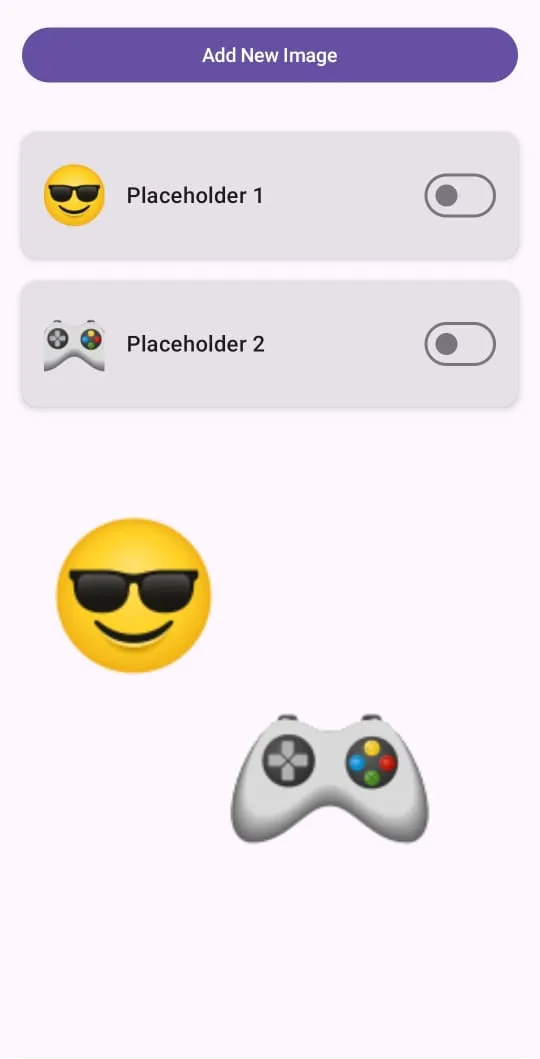
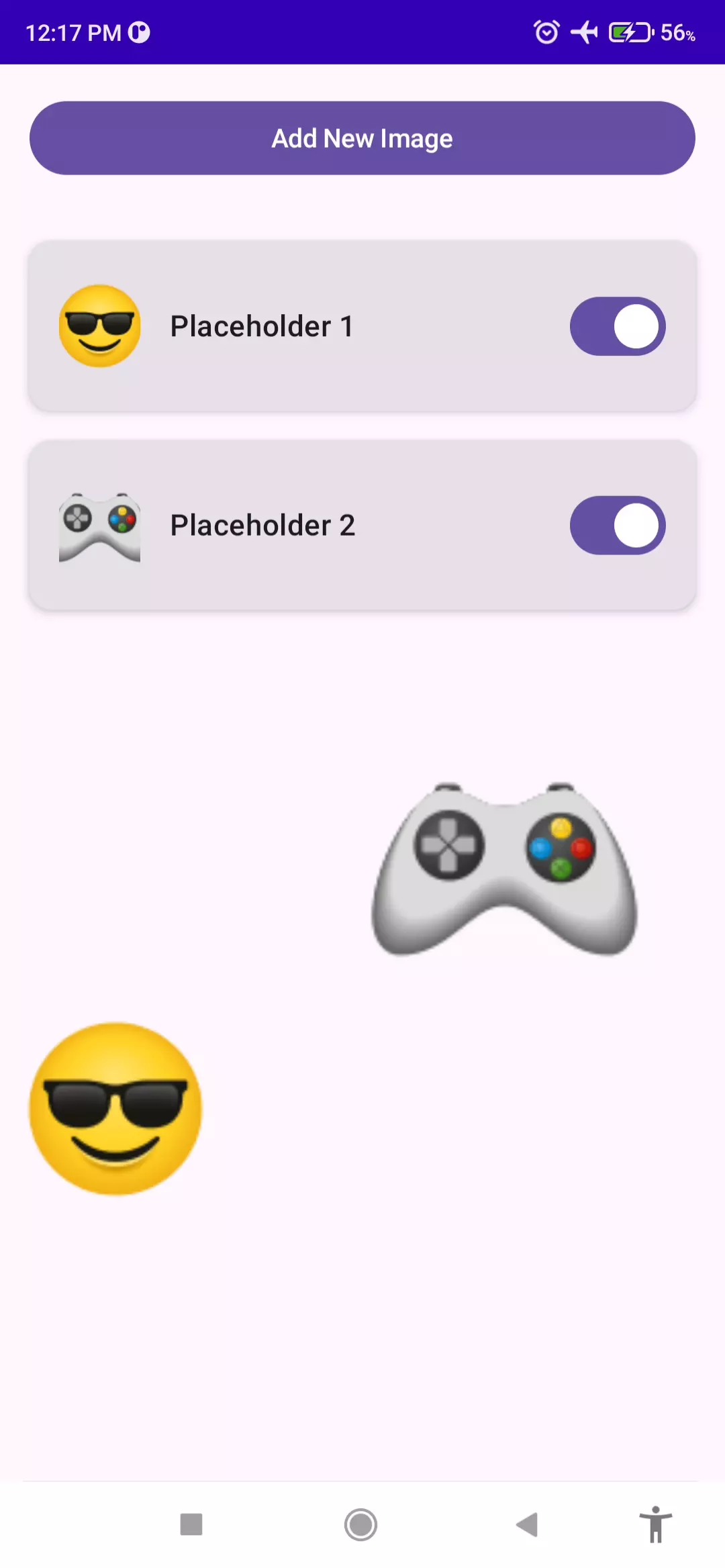
1.Access Your Image Library: Open FloatingImg to see and manage your image overlays.
2.Add a New Floating Image:
•Tap the "Create" or "+" icon.
•Optionally, provide a name for easy recall.
•Choose a transparent PNG file from your phone's storage. You'll see a small preview.
3.Activate Your Overlay: Find your image in the list and flip the switch to "ON." Your chosen image will now float on your screen!
4.Control Your Floating Image:
•Move it Around: Touch and drag the image to your desired location.
•Quick Actions (Long Press): Press and hold the floating image to open a menu with options.
•Adjust Size: Select "Resize" from the menu. You can then make the image larger or smaller to fit your needs.
•Dismiss: Choose "Close" from the menu to remove the image overlay.
5.Stay Organized: Delete any image overlays you no longer need directly from the app's main screen.
Why You'll Love FloatingImg:
•Multitask Like a Pro: Keep references, notes, or inspiration visible without constantly switching apps.
•Perfect for Creatives: Use it for tracing, color referencing, or keeping style guides handy.
•Gamer's Companion: Overlay maps, guides, or build orders while playing.
•Customizable Viewing: Easily resize and position your images for optimal visibility.
•Simple Management: Quickly add, toggle, and remove your floating images.
•Transparent PNG Support: Ideal for clean overlays without obtrusive backgrounds.
Tips for Choosing and Refining:
•App Name Consistency: Decide if you prefer "Floating Image" or "FloatingImg" and use it consistently. "Floating Image" is more descriptive, while "FloatingImg" is shorter and a bit more modern/techy.
•Target Audience: Think about who you primarily want to use this app. The language can be slightly adjusted to appeal to them (e.g., more technical for developers, more creative for artists).
•Highlight Uniqueness: If your app has a very specific unique selling point not covered, be sure to add it.
•Play Store Keywords: While writing, think about keywords users might search for (e.g., "image overlay," "floating PNG," "picture on screen," "reference image tool"). Naturally incorporate these.
•Keep it Updated: As you add more features (like saving position/size, more advanced resize controls), update your description!
Productivity
VIDEOS (1)
Ratings
0
0 total ratings
5
73%
4
10%
3
4%
2
3%
1
10%
REVIEWS
No reviews yet. Be the first one to review this app
'%20fill-rule='evenodd'%20clip-rule='evenodd'%20d='M8.04878%200.118571C9.10796%20-0.198465%2010.2321%200.132893%2010.9526%200.961509L18.7058%209.9036H22.0709C23.0433%209.90386%2023.8429%2010.7032%2023.843%2011.6757V13.1309H23.8497C23.8497%2013.4983%2023.5476%2013.8014%2023.1803%2013.8015H19.9372V33.9548C19.9372%2034.423%2019.5703%2034.7975%2019.1021%2034.7977H17.142C15.91%2034.7977%2014.9156%2033.8036%2014.9154%2032.5644V28.0251C13.5538%2028.5582%2012.3722%2028.7169%2010.9963%2028.7169C6.45689%2028.7169%203.74677%2025.6897%203.74677%2020.6099V13.8015H1.77319C0.800641%2013.8015%200.000280942%2013.0091%200%2012.0294V10.573C0.000219737%2010.2057%200.303205%209.9036%200.670545%209.9036H13.5676L5.13039%201.85482C4.82078%201.55938%204.94365%201.04032%205.35428%200.917851L8.04878%200.118571ZM8.78425%2013.8082V20.611C8.78438%2023.1974%209.8151%2024.35%2012.1135%2024.35C12.9637%2024.3499%2014.1167%2024.1489%2014.902%2023.7959V13.8082H8.78425Z'%20fill='white'/%3e%3c/svg%3e)
Permissions
Storage: access photos, media, and files on your device
Phone: make and manage phone calls
Curated for YouSee all






Scan to download on PhonePe Appstore