
CASIO COMPUTER CO., LTD.
4.0
ratings27 MB
SizeVerified
SCREENSHOTS (8)
About the app
CASIO C-Mirroring is an Android app that makes it possible to establish a network connection between an Android terminal device and network-compatible CASIO Projector *1, and perform mirroring projection of the Android terminal screen, image projection in the terminal, and browser projection.
(*1)Applicable Projector Models:
Models 1(*2):
XJ-A147, XJ-A247, XJ-A257
XJ-M146, XJ-M156, XJ-M246, XJ-M256
XJ-UT310WN, XJ-UT311WN, XJ-UT351WN
XJ-F20XN, XJ-F200WN, XJ-F210WN
Models 2:
XJ-S400UN/S400WN
XJ-UT352WN
XJ-F211WN/XJ-F21XN
(Some models covered by this app may not be available in certain geographic areas.)
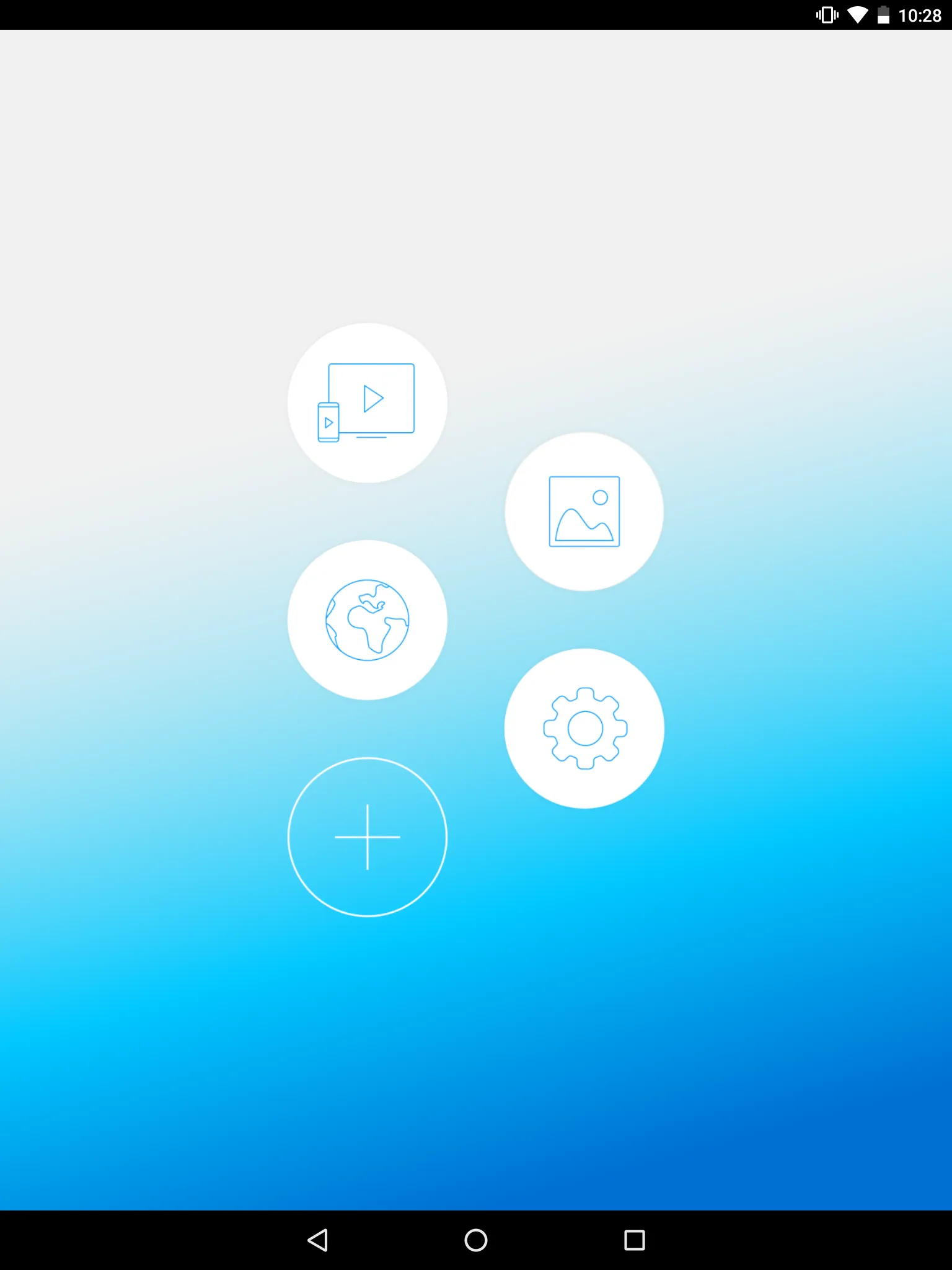
・Screen Mirroring:
Projects the smart device screen with the projector.
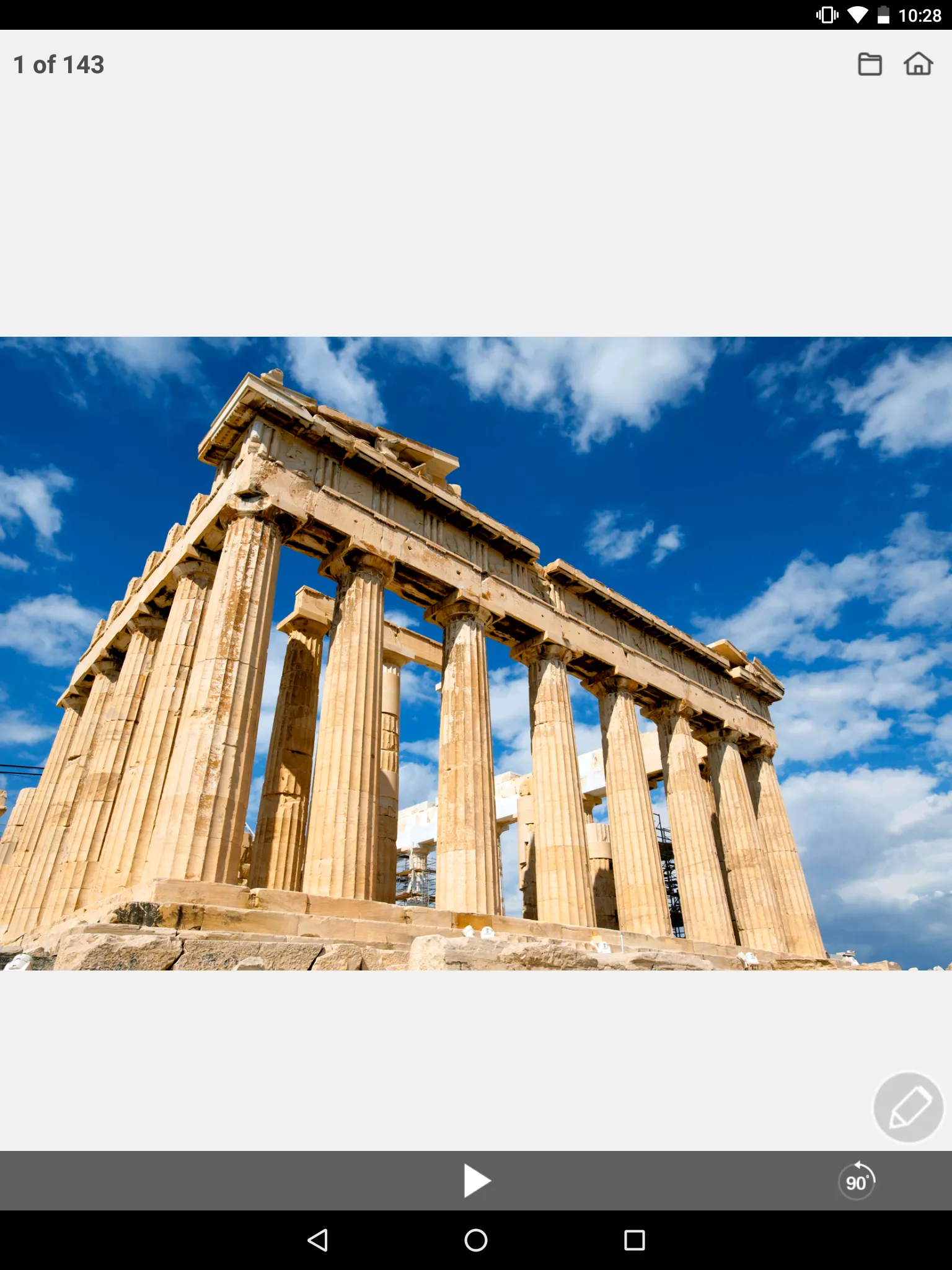
・Photo:
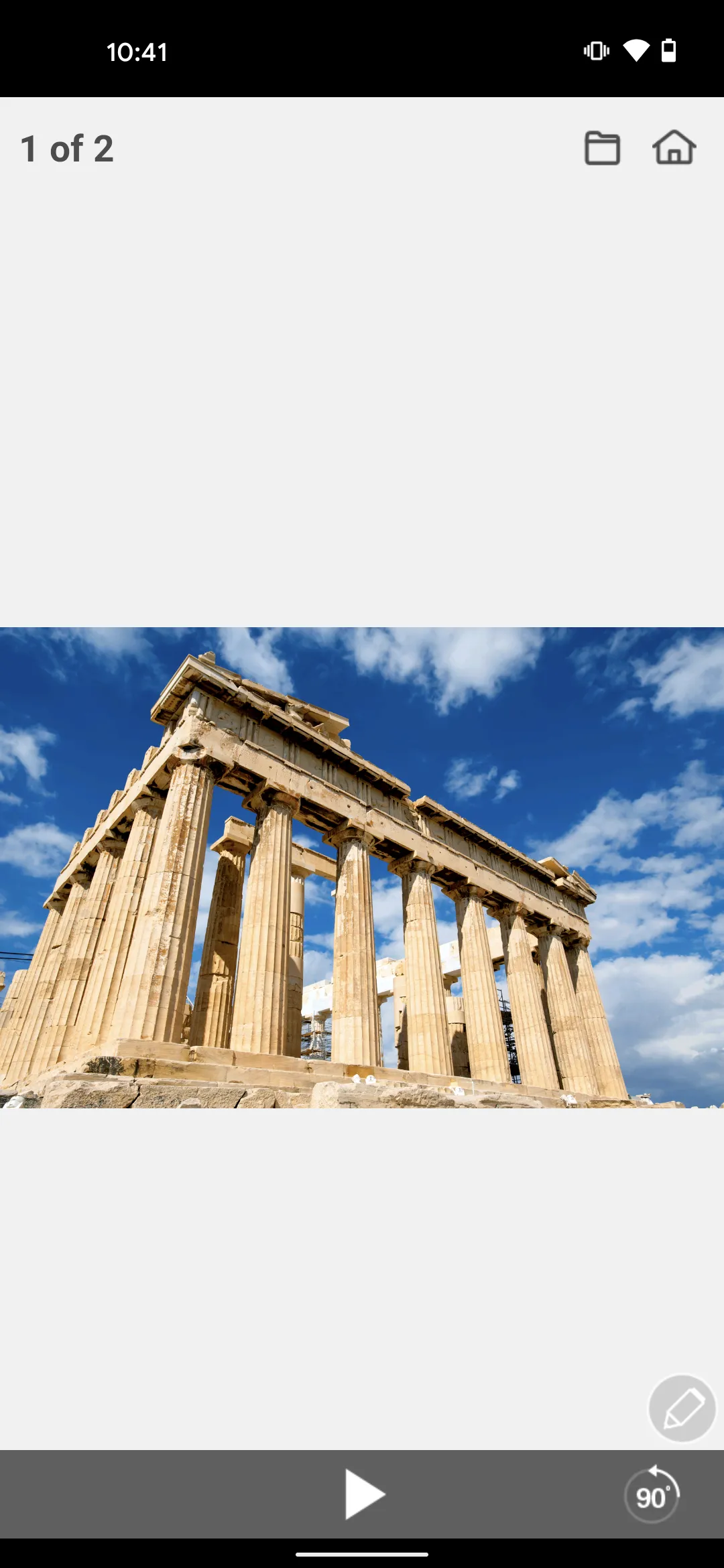
Projects smart device images (JPEG, PNG) with the projector.
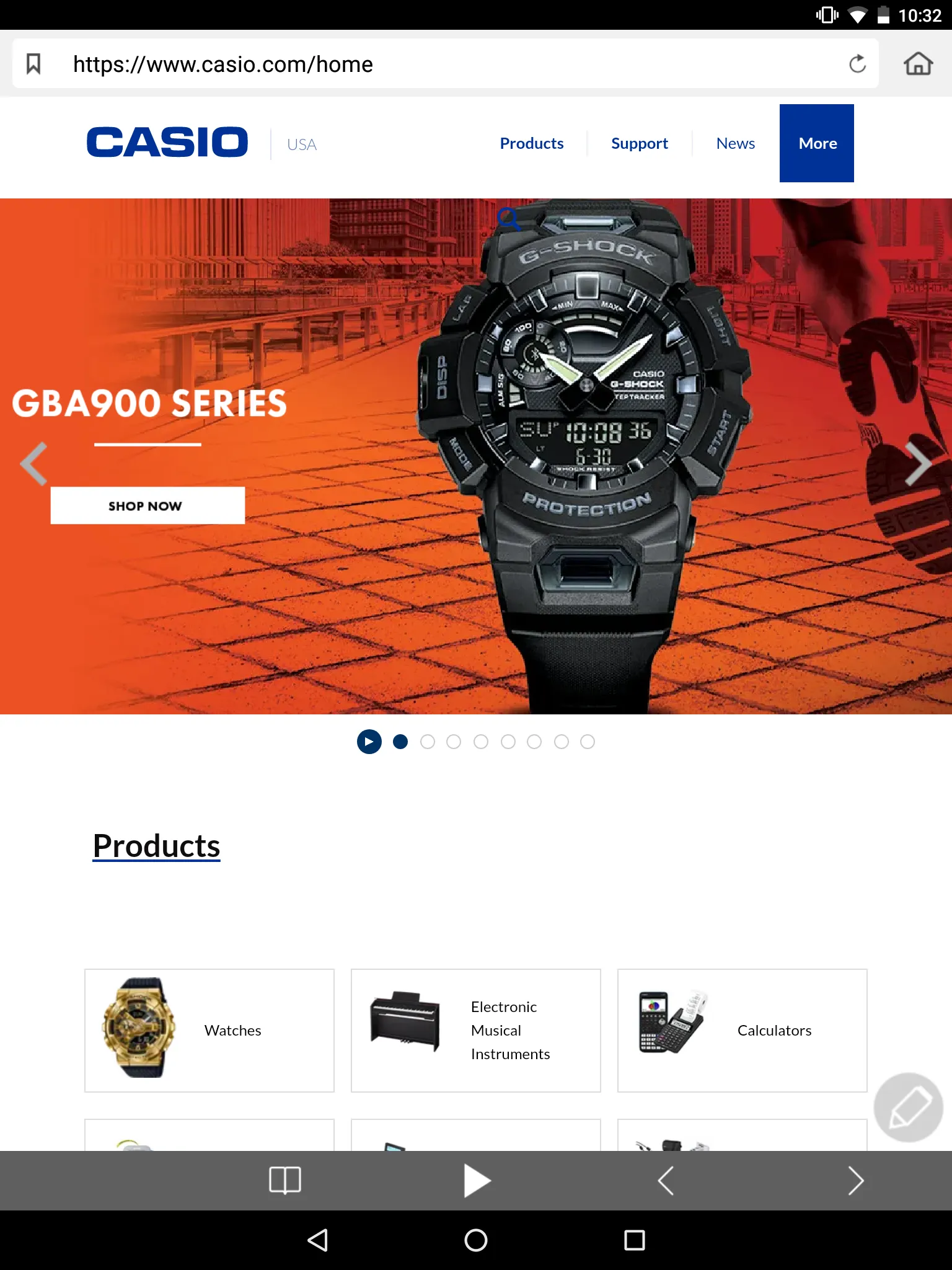
・Browser:
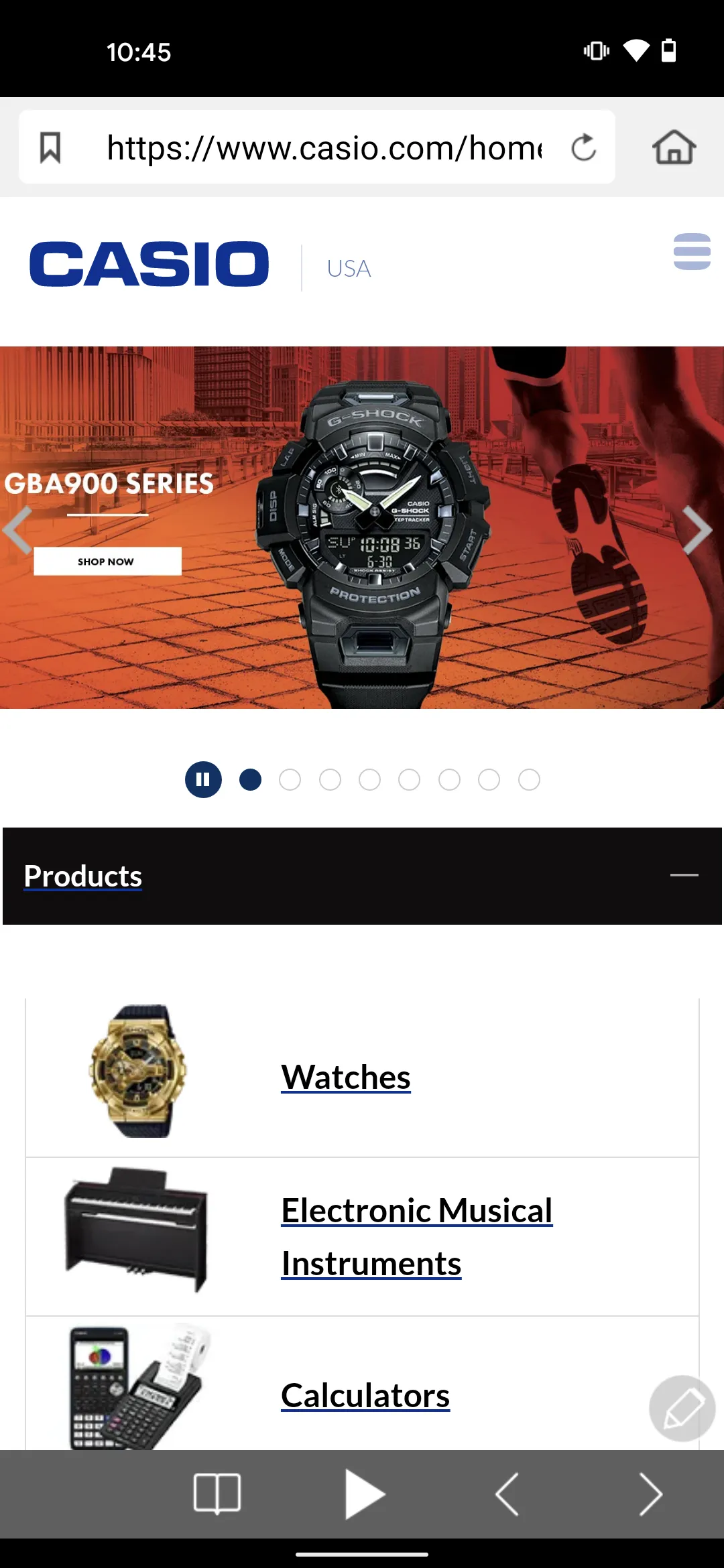
Uses the application's built-in web browser to project web pages with the projector.
Using CASIO C-Mirroring
Use the steps below to establish a connection between a smart device and projector with this app.
If you are already connected via a wireless LAN access point, refer to your projector's Network Function Guide.
(1) Configure projector network settings.
If applicable models 1(*2) and establishing a direct wireless LAN connection between the projector and computer, use the projector's "Network Settings" - "Wireless LAN Settings of this unit" menu item to change the SSID of the projector to a general-purpose SSID (casiolpj0101, casiolpj0102, casiolpj0103, casiolpj0104) or to the user SSID.
(2) Switch the input source of the projector to "Network" ("Wireless" for an XJ-A Series projector).
This projects the standby screen, which shows network information.
(3) On the smart device, select the desired access point with "Settings" - "Wi-Fi" and establish a connection.
(4) Start up CASIO C-Mirroring.
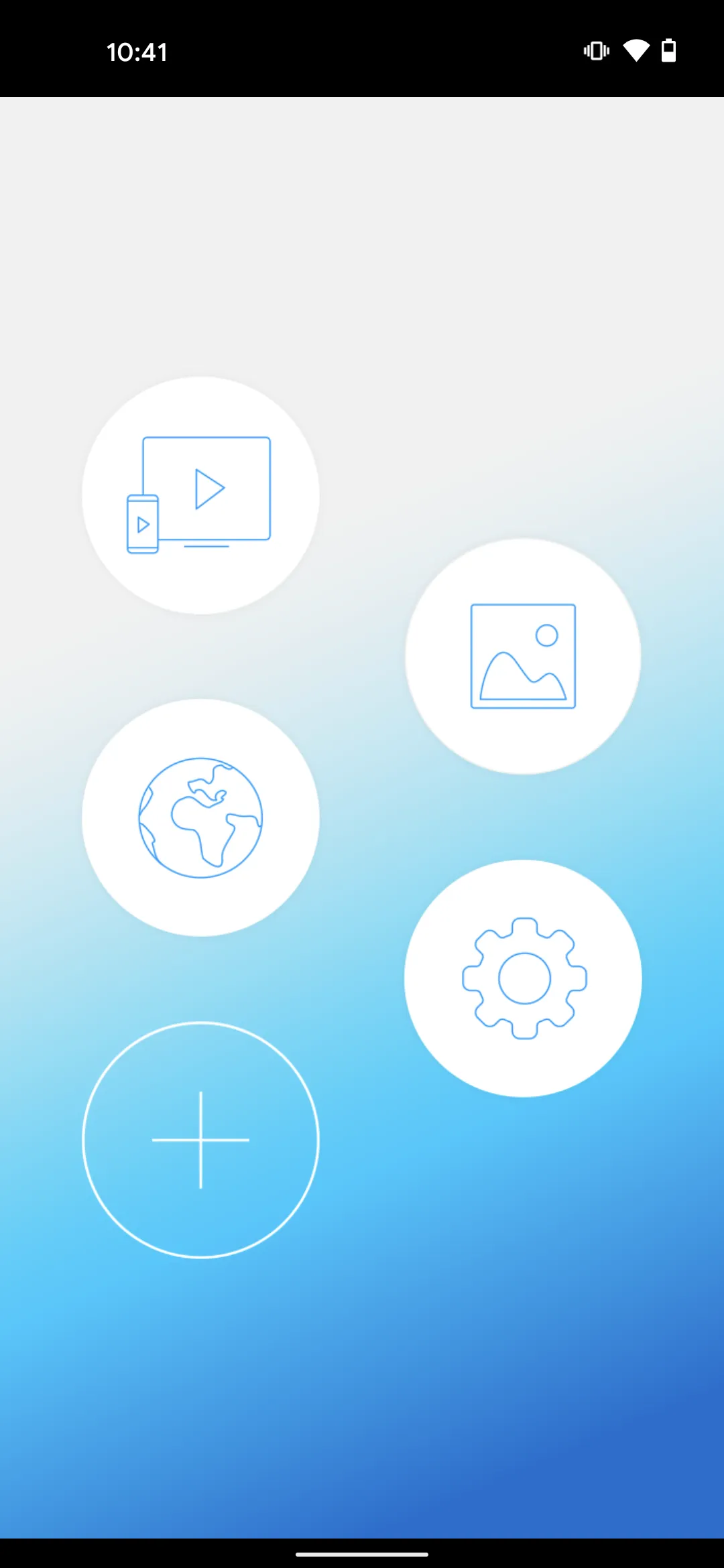
(5) On the home screen, select the function you want and execute it.
(6) When you want to project with the projector, tap the Play button. When a connectable projector is found, select it. If a connectable projector isn't found, input IP address of the projector then connect to it.
Productivity
Ratings
0
0 total ratings
5
73%
4
10%
3
4%
2
3%
1
10%
REVIEWS
No reviews yet. Be the first one to review this app
'%20fill-rule='evenodd'%20clip-rule='evenodd'%20d='M8.04878%200.118571C9.10796%20-0.198465%2010.2321%200.132893%2010.9526%200.961509L18.7058%209.9036H22.0709C23.0433%209.90386%2023.8429%2010.7032%2023.843%2011.6757V13.1309H23.8497C23.8497%2013.4983%2023.5476%2013.8014%2023.1803%2013.8015H19.9372V33.9548C19.9372%2034.423%2019.5703%2034.7975%2019.1021%2034.7977H17.142C15.91%2034.7977%2014.9156%2033.8036%2014.9154%2032.5644V28.0251C13.5538%2028.5582%2012.3722%2028.7169%2010.9963%2028.7169C6.45689%2028.7169%203.74677%2025.6897%203.74677%2020.6099V13.8015H1.77319C0.800641%2013.8015%200.000280942%2013.0091%200%2012.0294V10.573C0.000219737%2010.2057%200.303205%209.9036%200.670545%209.9036H13.5676L5.13039%201.85482C4.82078%201.55938%204.94365%201.04032%205.35428%200.917851L8.04878%200.118571ZM8.78425%2013.8082V20.611C8.78438%2023.1974%209.8151%2024.35%2012.1135%2024.35C12.9637%2024.3499%2014.1167%2024.1489%2014.902%2023.7959V13.8082H8.78425Z'%20fill='white'/%3e%3c/svg%3e)
Permissions
Storage: access photos, media, and files on your device
Internet: use your internet connection
Developer Info
Curated for YouSee all





Scan to download on PhonePe Appstore