

Nakajima Masao
4.0
ratings5 MB
SizeVerified
SCREENSHOTS (8)
About the app
[Function]
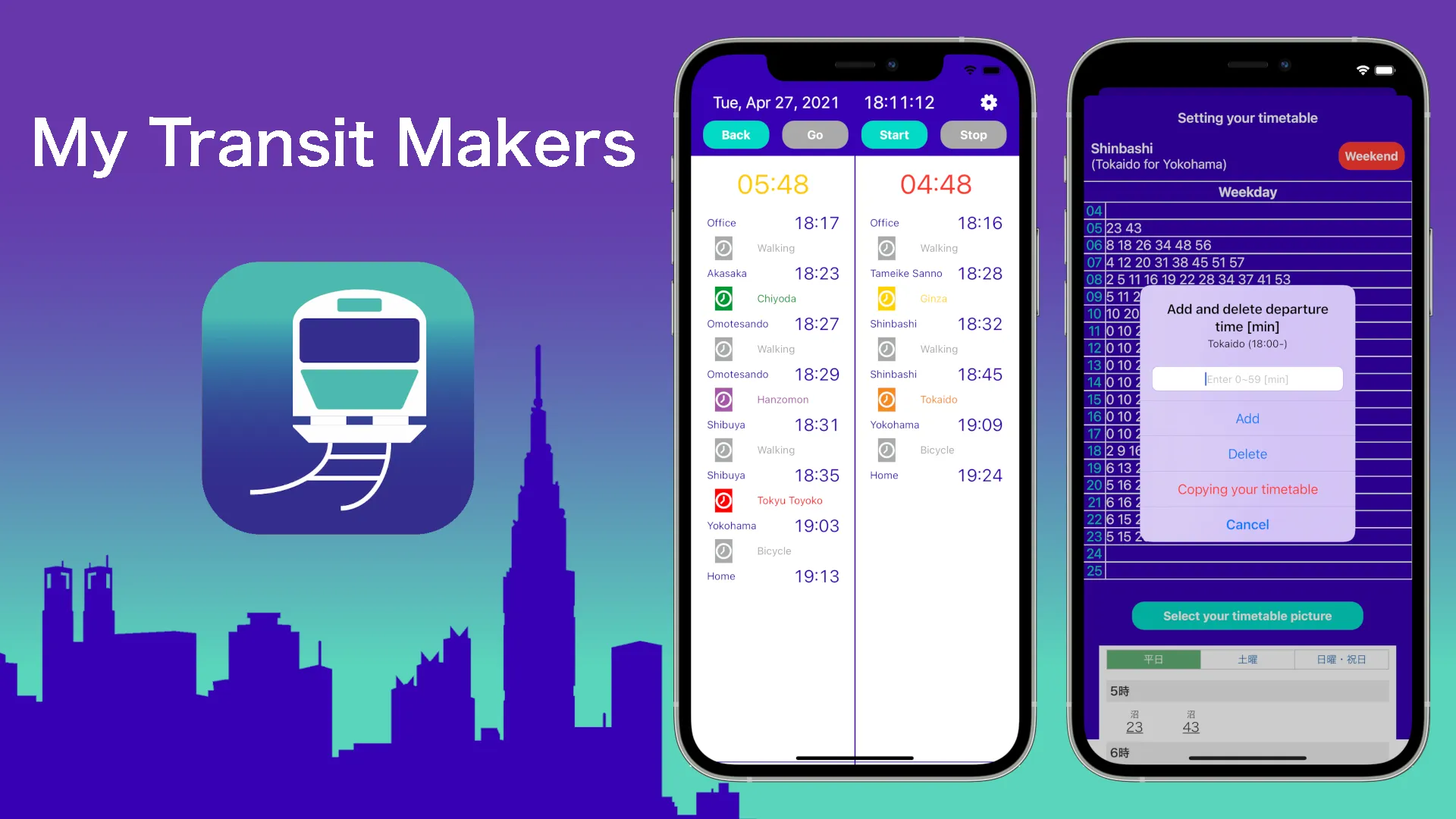
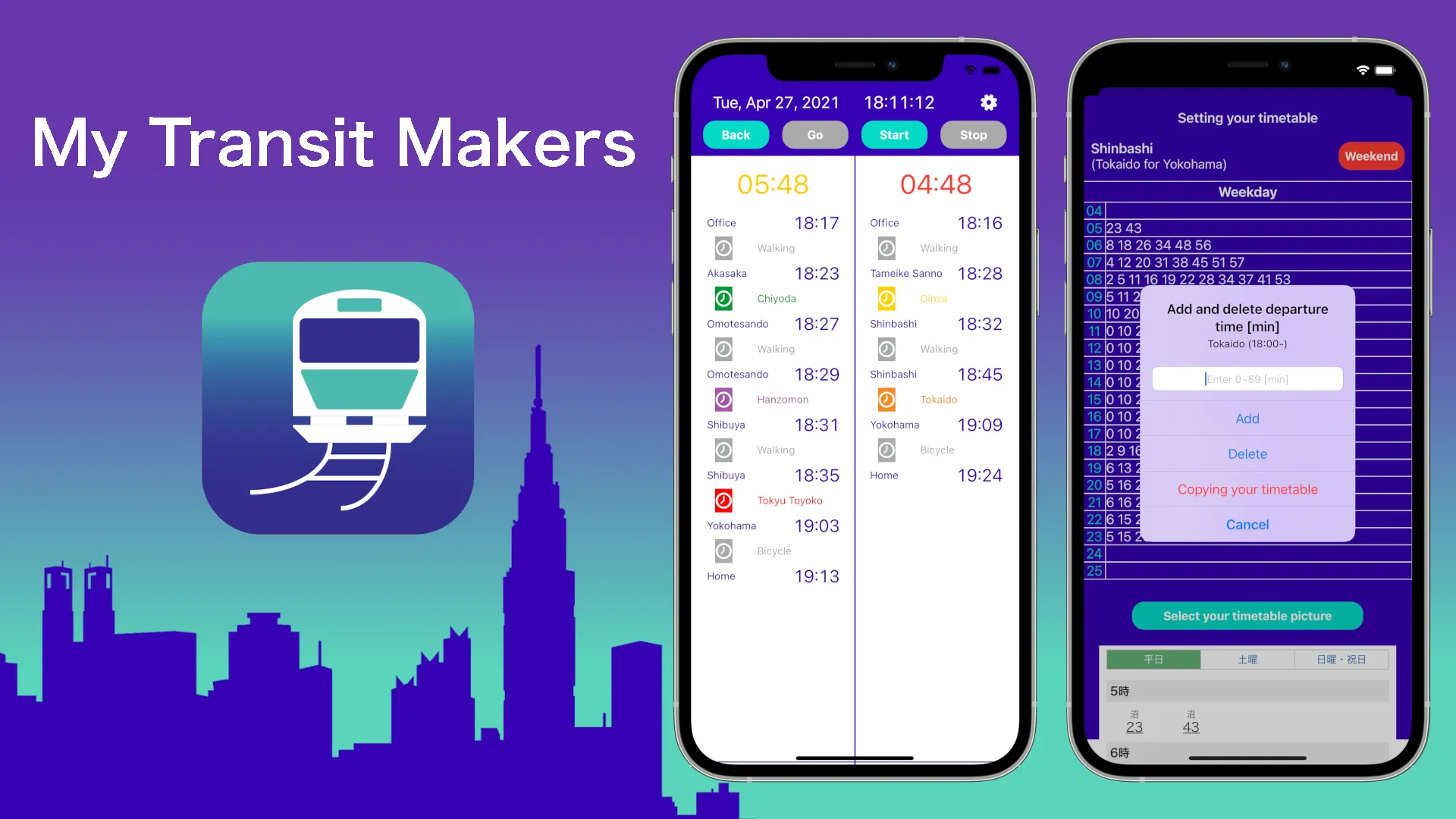
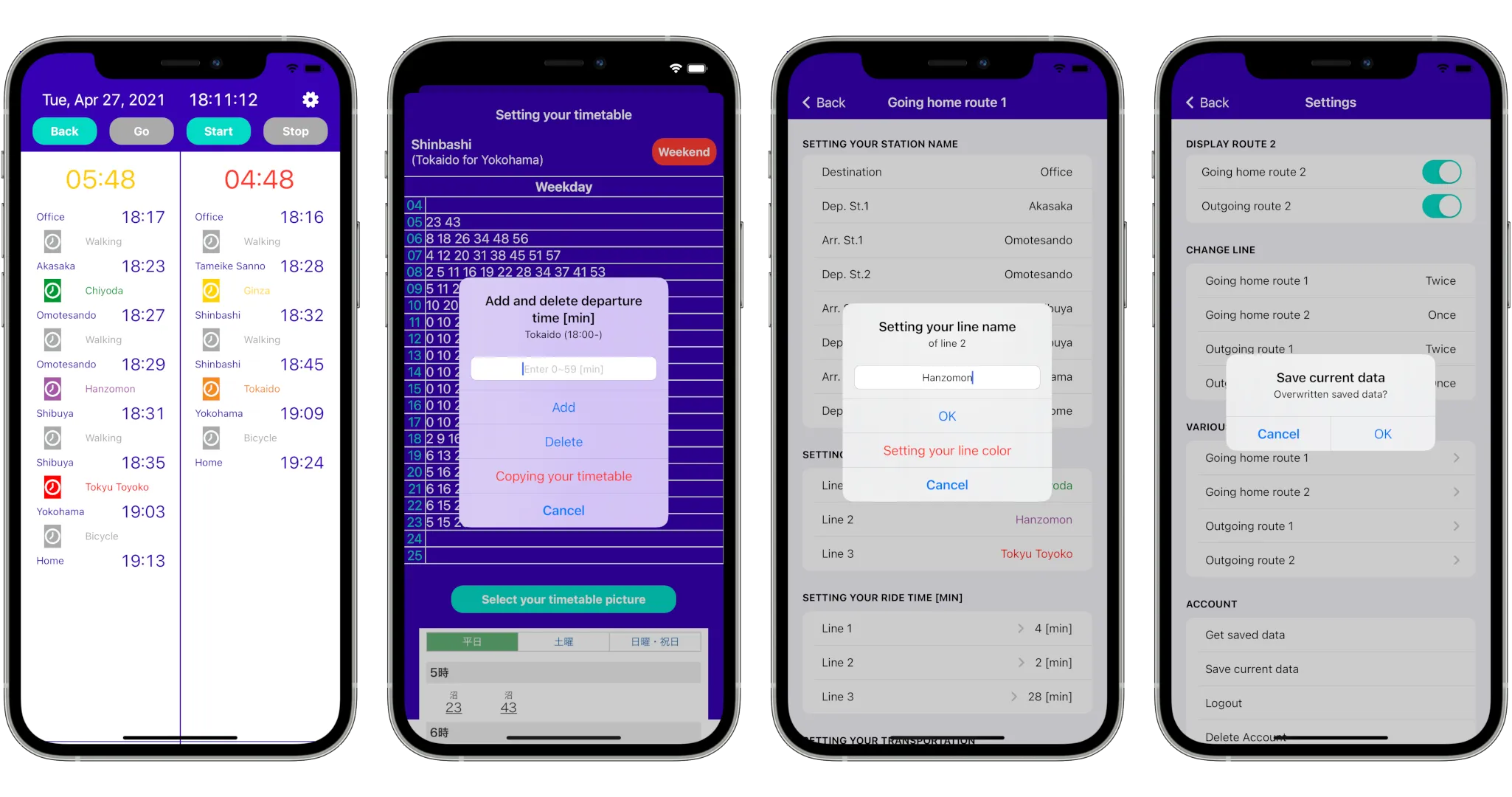
- You can make your own personal transit guide convenient for daily commuting.
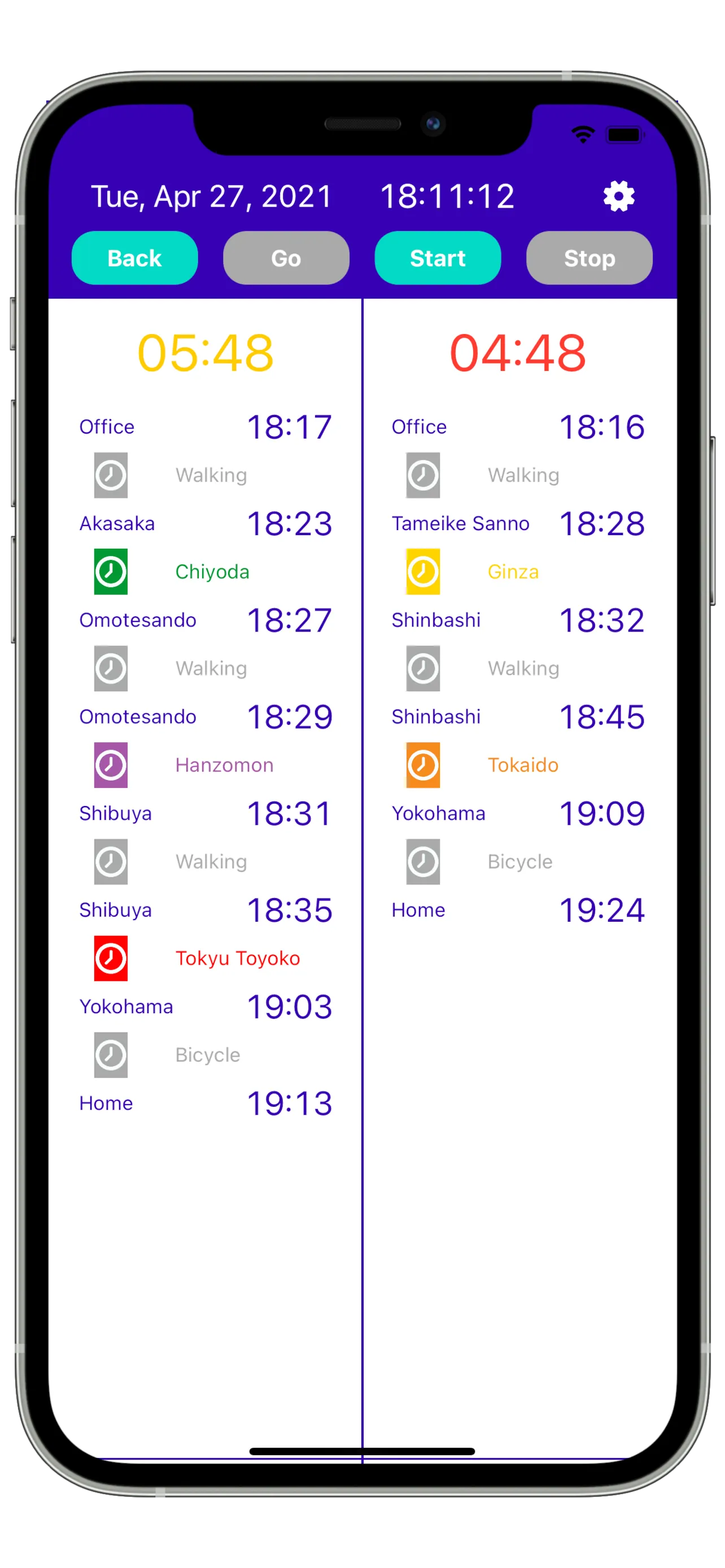
- You can see the countdown to departure.
- You can see and compare 2 routes at the same time.
- You can see your route home and your outgoing route, and switch between them.
- You can resister timetables for both weekdays and weekends(*1) and switch between them.
*1 : Not supported on holidays
[How to set up]
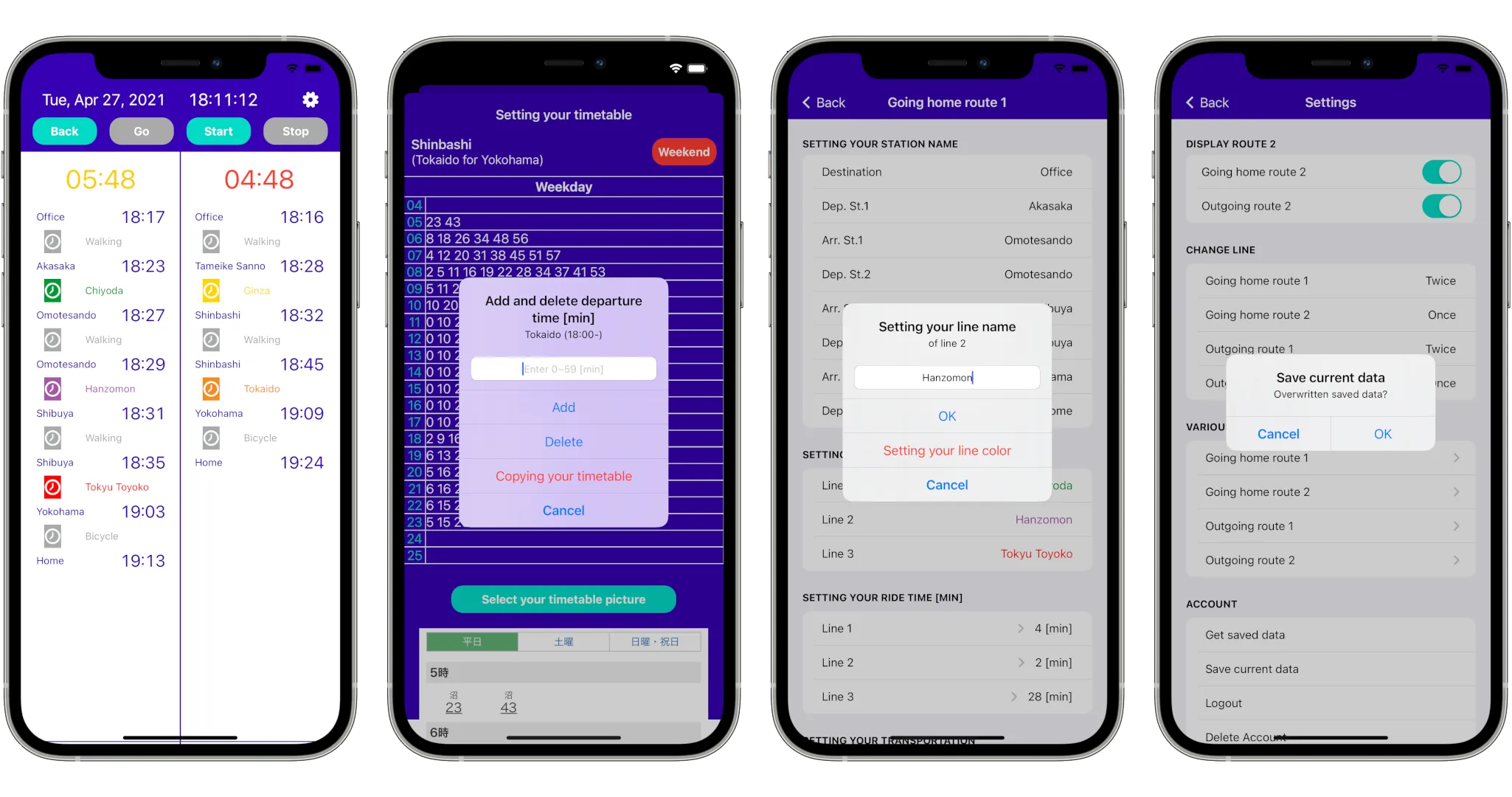
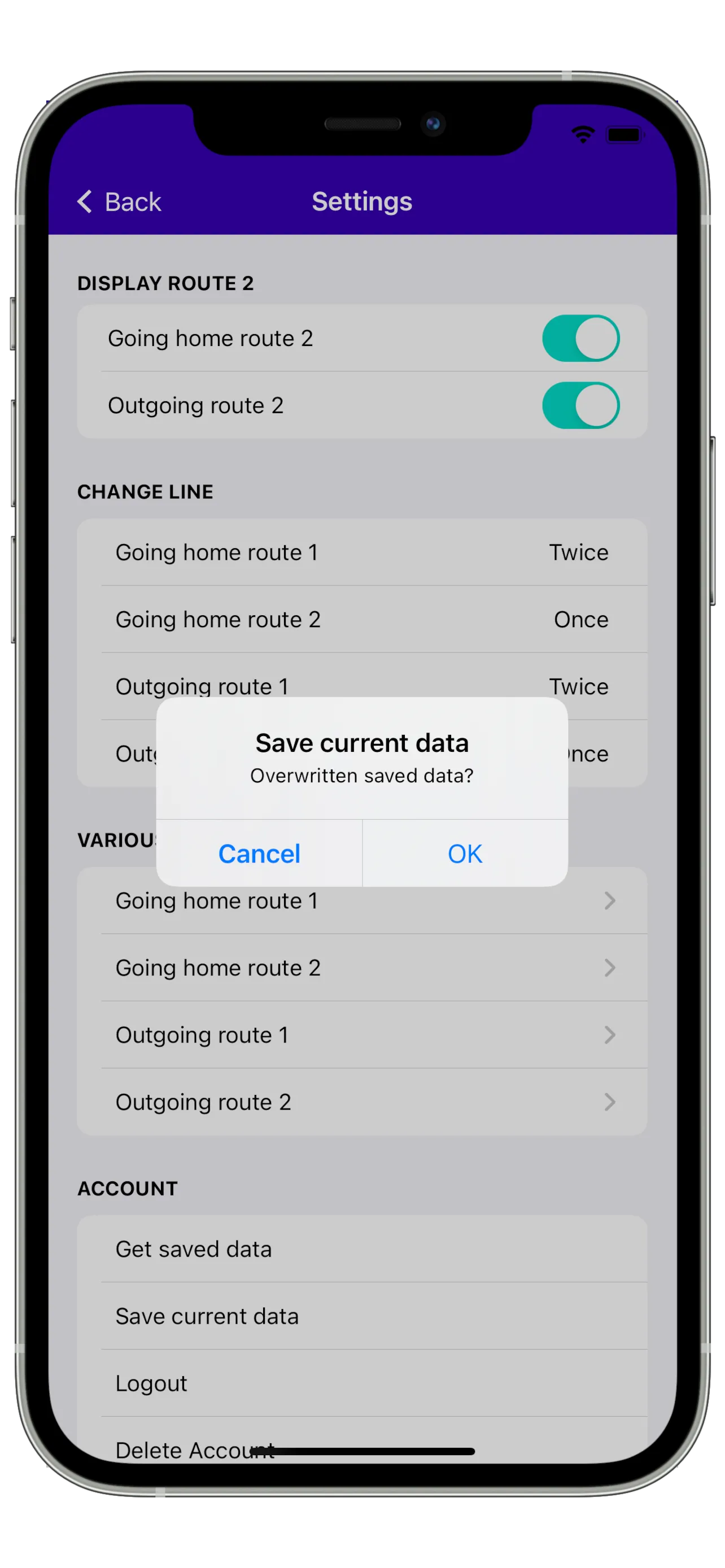
1. Tap the gear button on the top bar to make the following settings.
1-1) Tap "Set up the number of transits on home route 1" and select the number of transits(*2).
1-2) Tap "Set up the number of transits on outgoing route 1" and select the number of transits(*2).
1-3) Tap "Show route home 2" , if necessary, and select the number of transits(*2).
1-4) Tap "Show outgoing route 2" , if necessary, and select the number of transits(*2).
1-5) Tap "←" on the top bar to return to the main screen.
*2 : Not supported over 3 times of trasfers
2. Various settings: Tap each item to change it.
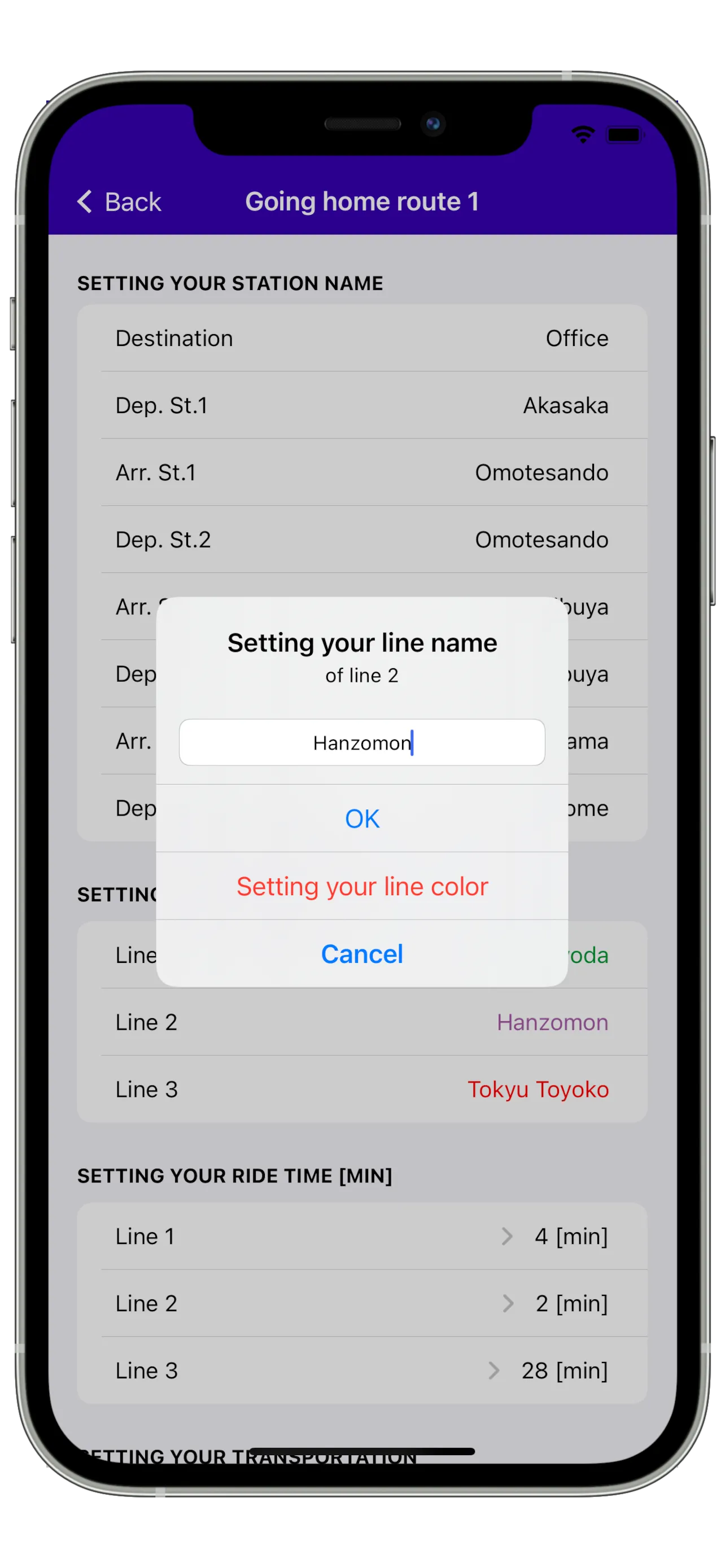
2-1) Tap "Office" and enter your departure point name.
2-2) Tap "Home" and enter your destination name.
2-3) Tap "Depart Sta.1" and enter your 1st departure station name. If necessary, set up "Depart Sta.2" and "Depart Sta.3" in the same way.
2-4) Tap "Arrive Sta.1" and enter your 1st arrival station name. If necessary, set up "Arrive Sta.2" and "Arrive Sta.3" in the same way.
2-5) Tap "Line1" and enter your line name. If necessary, set up "Line2" and "Line3" in the same way. Also tap "LINE COLOR SETTINGS" to change the line color.
2-6) Tap "Walking" and select from "Walking", "Bicycle" or "Car".
2-7) Tap each clock mark and enter your each ride time.
2-8) Tap each gray rectangle and enter your required time. Also tap "SET UP TIMETABLE" to set up your each timetable.
2-9) Configure the above settings for all routes.
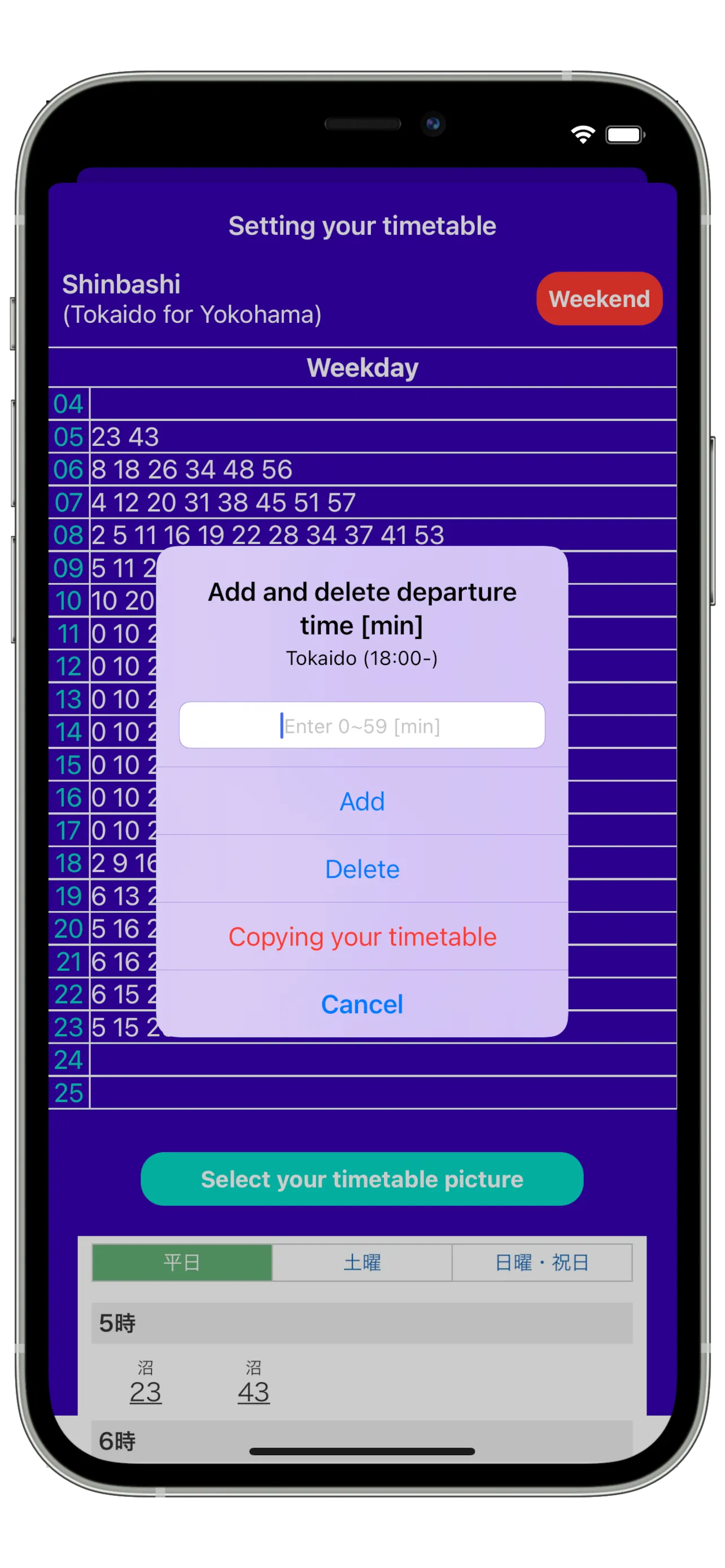
3. To create your timetables, add the time in the following way.
3-1) Tap the each entry field of time , and enter the departure minute and tap "Register". The departure time will be added to the entry field.
3-2) Repeat the above if necessary.
3-3) If you have the time which you want to delete, tap "Delete" after entering the time.
3-4) Tap "WEEKEND", and set up the timetable for weekend in the same way.
3-5) Configure the above timetable settings for all lines.
[Others]
Supported OS: Android 7.0 or Newer
Maps and Navigation
Ratings
0
0 total ratings
5
73%
4
10%
3
4%
2
3%
1
10%
REVIEWS
No reviews yet. Be the first one to review this app
'%20fill-rule='evenodd'%20clip-rule='evenodd'%20d='M8.04878%200.118571C9.10796%20-0.198465%2010.2321%200.132893%2010.9526%200.961509L18.7058%209.9036H22.0709C23.0433%209.90386%2023.8429%2010.7032%2023.843%2011.6757V13.1309H23.8497C23.8497%2013.4983%2023.5476%2013.8014%2023.1803%2013.8015H19.9372V33.9548C19.9372%2034.423%2019.5703%2034.7975%2019.1021%2034.7977H17.142C15.91%2034.7977%2014.9156%2033.8036%2014.9154%2032.5644V28.0251C13.5538%2028.5582%2012.3722%2028.7169%2010.9963%2028.7169C6.45689%2028.7169%203.74677%2025.6897%203.74677%2020.6099V13.8015H1.77319C0.800641%2013.8015%200.000280942%2013.0091%200%2012.0294V10.573C0.000219737%2010.2057%200.303205%209.9036%200.670545%209.9036H13.5676L5.13039%201.85482C4.82078%201.55938%204.94365%201.04032%205.35428%200.917851L8.04878%200.118571ZM8.78425%2013.8082V20.611C8.78438%2023.1974%209.8151%2024.35%2012.1135%2024.35C12.9637%2024.3499%2014.1167%2024.1489%2014.902%2023.7959V13.8082H8.78425Z'%20fill='white'/%3e%3c/svg%3e)
Permissions
Storage: access photos, media, and files on your device
Internet: use your internet connection
Phone: make and manage phone calls
Developer Info
Curated for YouSee all






Scan to download on PhonePe Appstore