
42Gears Mobility Systems
4.0
ratings3 MB
SizeVerified
SCREENSHOTS (8)

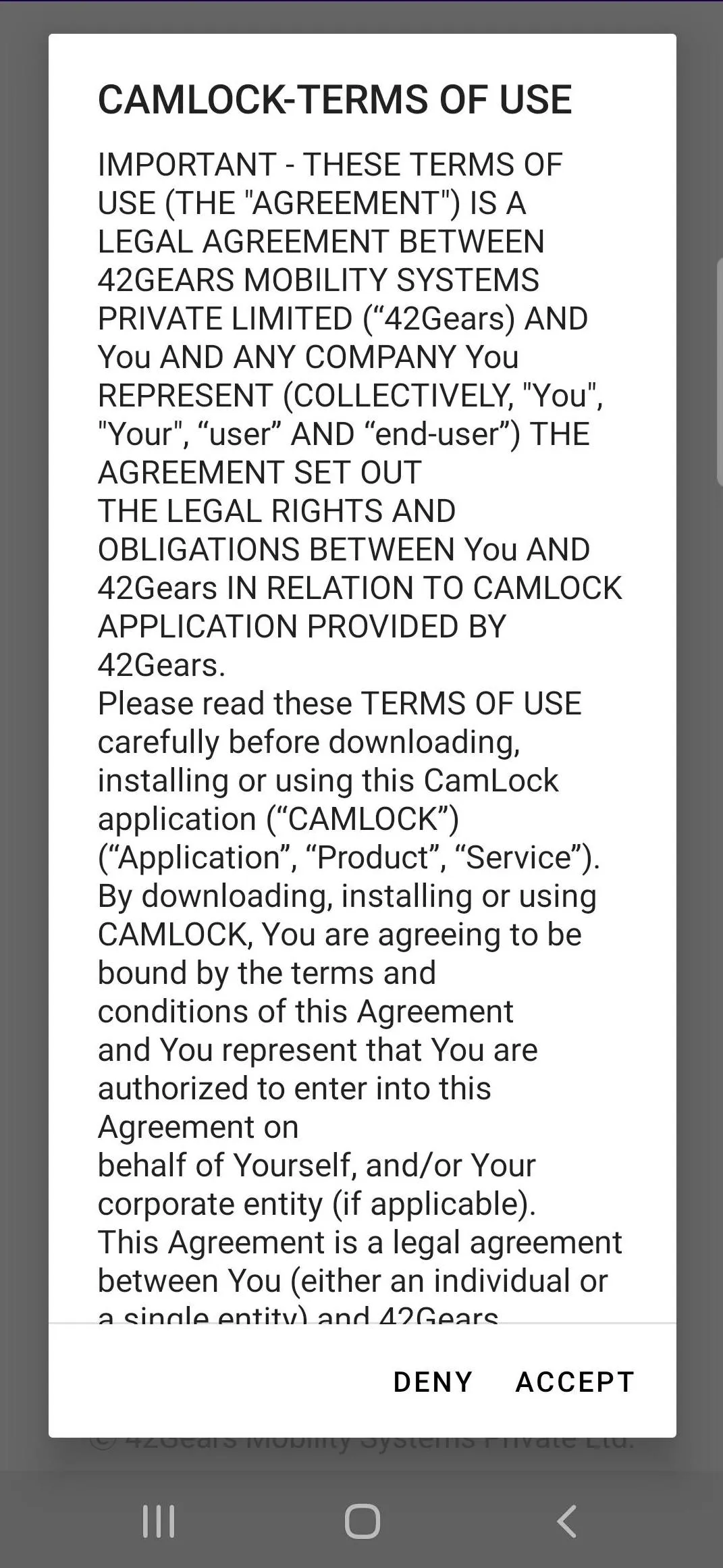
About the app
CamLock is a light-weight, non-intrusive camera blocking application developed by 42Gears. It is designed to protect sensitive business information within the business premises. The application seamlessly integrates with any visitor or attendance management system, helping prevent data breach of any sort.
CamLock activates and deactivates smartphone cameras based on employee activity, location, and/or time of day. The solution is designed to prevent hackers and competitors from gaining access to business-critical information by leveraging a phone’s camera.
Although the solution is useful for business across all industry verticals, businesses in the healthcare, pharmaceutical, banking, automotive, and retail sectors stand to benefit the most from it.
Primary Features
Light-weight application that doesn’t disrupt the workflow
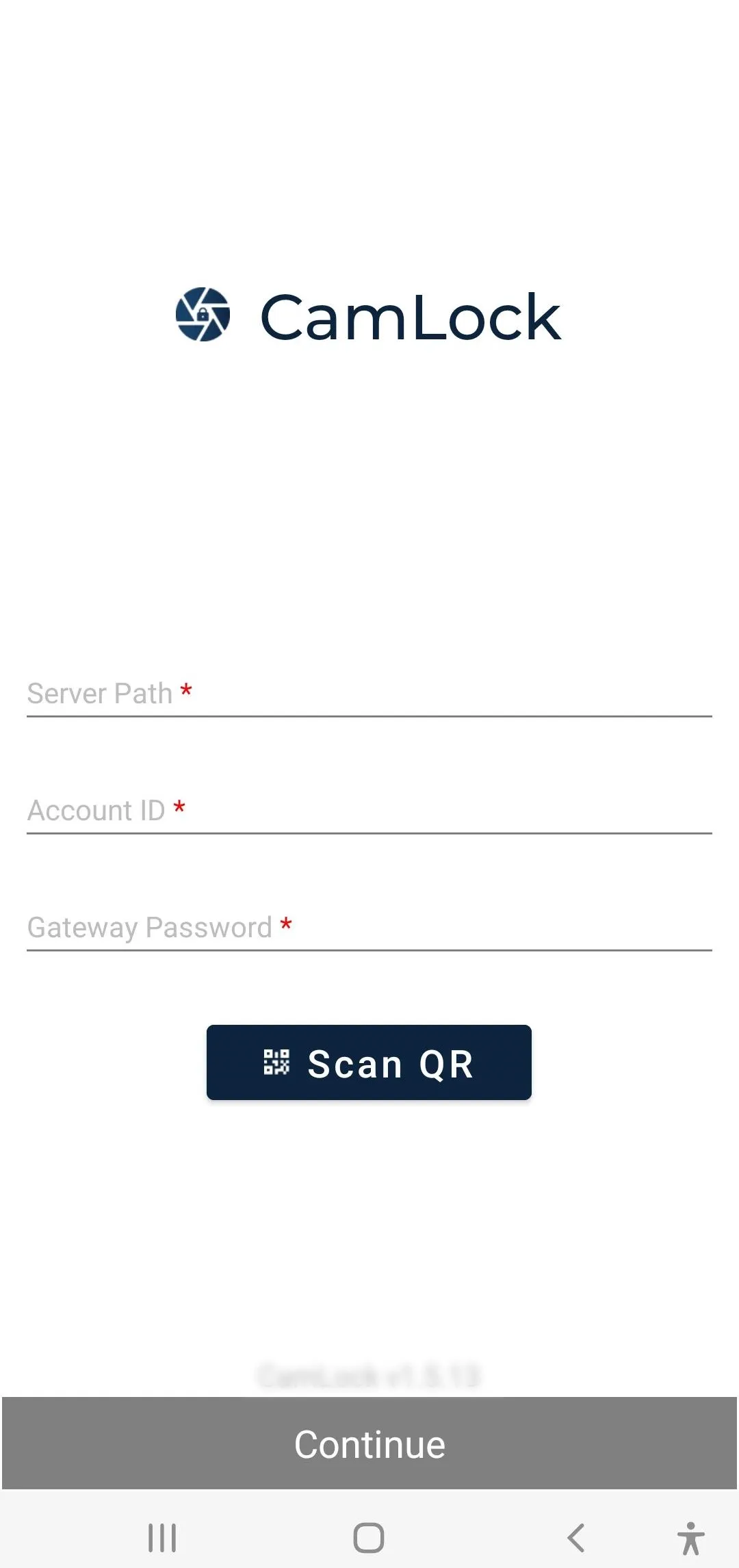
Enrol your device using QR Code enrollment
Helps block device cameras based on device activity, location, and time of day
Restrict employees/visitors from uninstalling the CamLock agent on the device.
Integrates with current attendance and visitor management systems to block camera applications.
Benefits of Using CamLock
Prevent potential revenue loss due to data leak
Ensure only devices that adhere to the company’s compliance and security policies are allowed inside
Versions
Supported on Android devices running Android 7.0 and above.
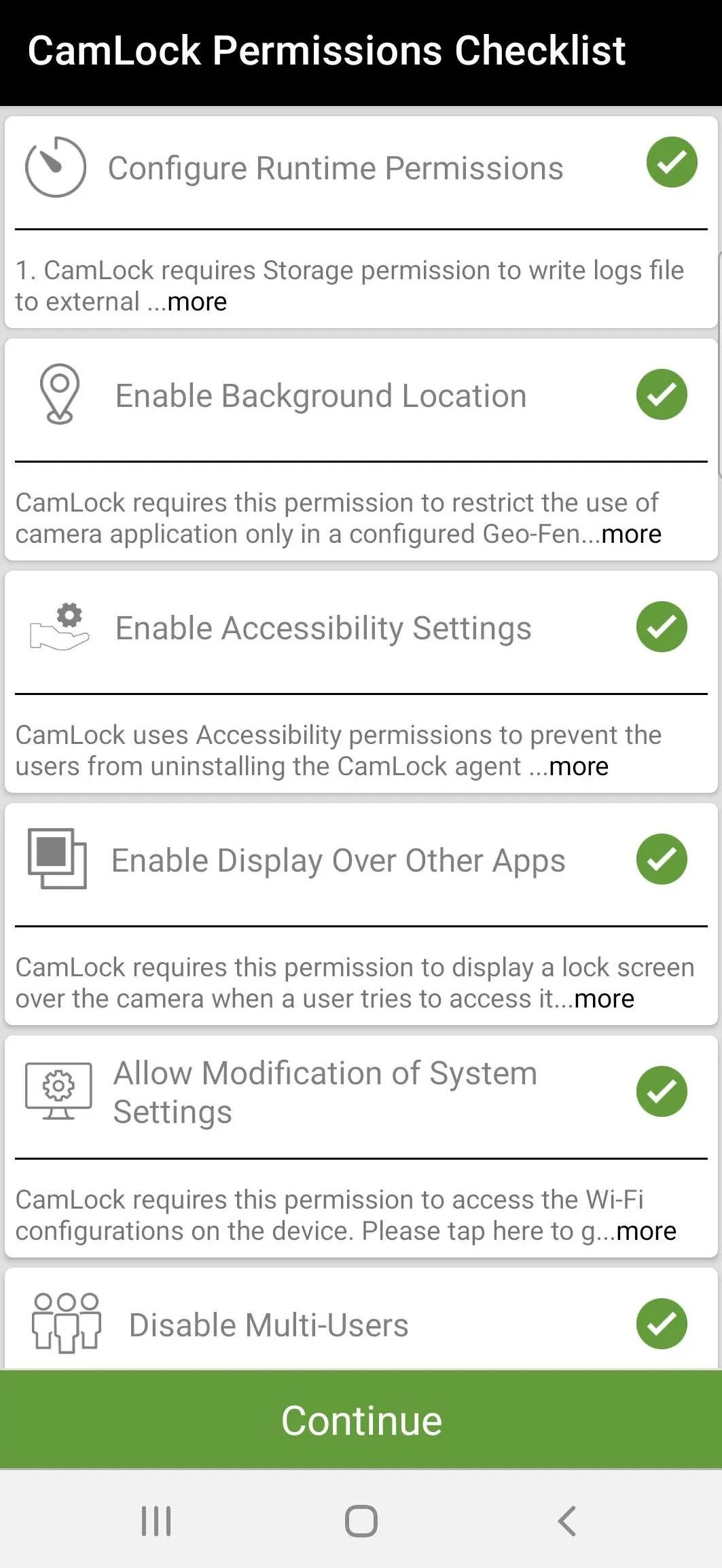
Sensitive permissions needed for CamLock
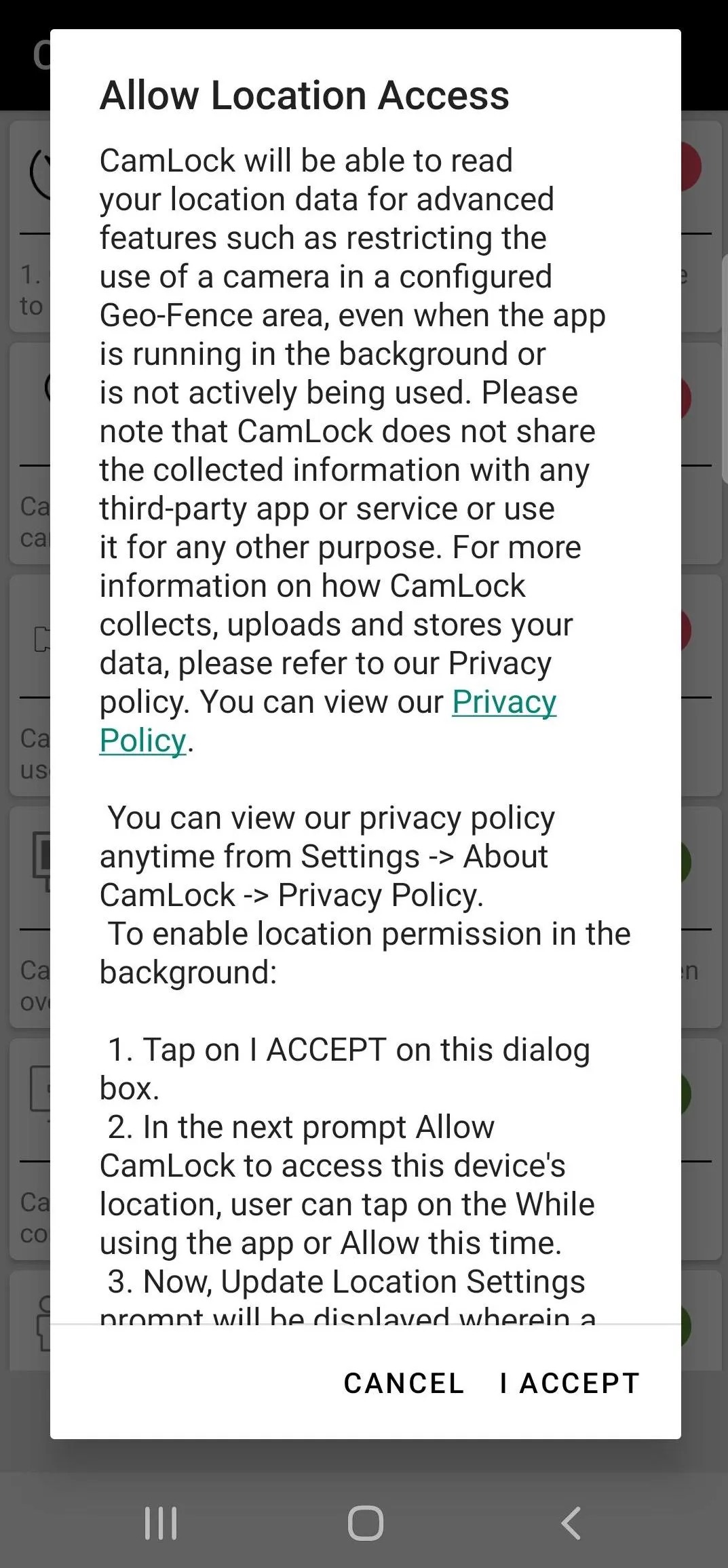
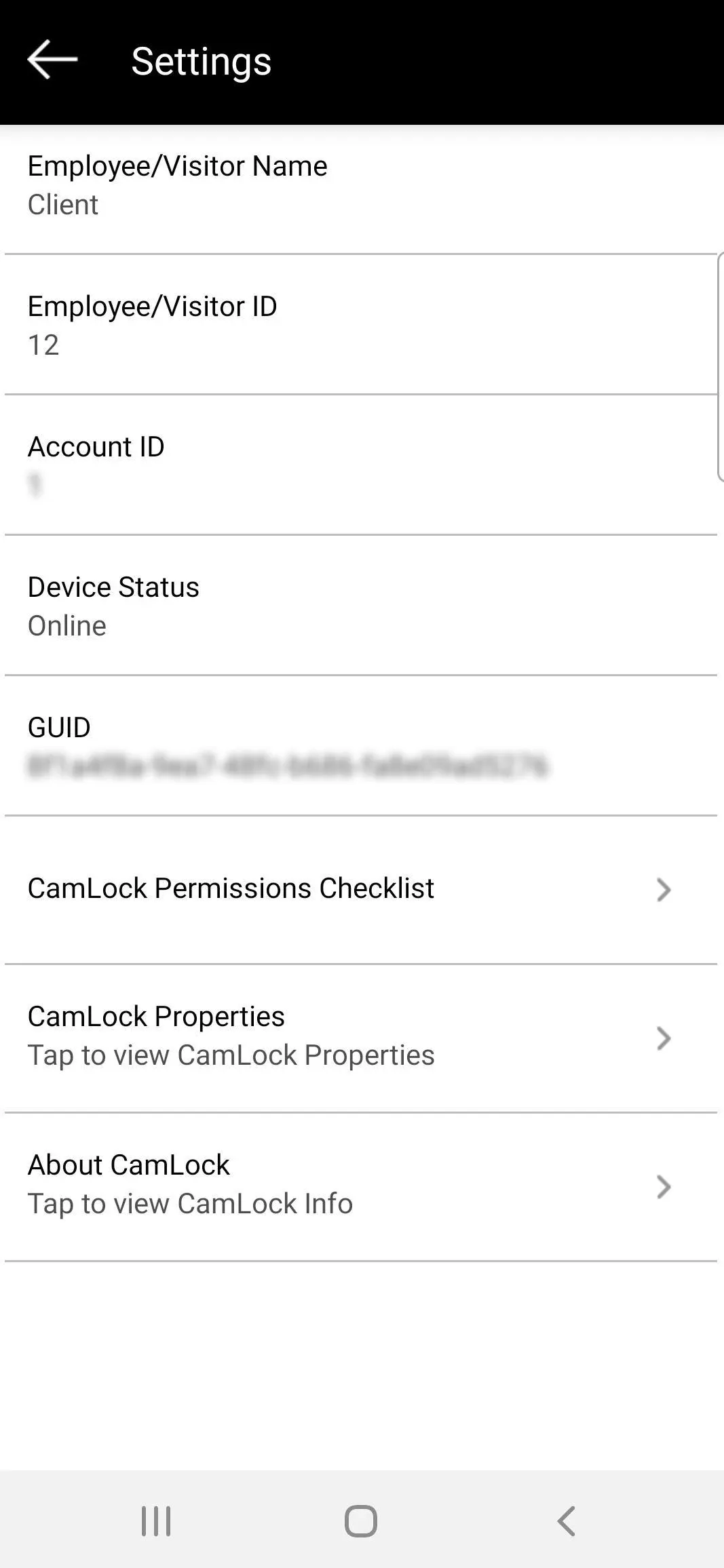
Enable Background Location: This permission status has be set to “Allow all the time” status for the application to be able to capture location of the device.CamLock requires this permission to enable advanced device management feature to work such as restricting use of camera in a specified location etc.
Enable Accessibility Settings: Clicking on this option, the users will be directed to, “Accessibility” section of System settings. Users should select the CamLock Application and grant the Accessibility permissions to prevent the user from revoking the CamLock agent permissions.
How to uninstall CamLock application?
Employee/Visitor will only be able to uninstall the CamLock Application when the device has moved away from the designated Geo-Fence or Work Location set by the IT admin.
Important Links:
Get started with Camlock-
Website: https://www.42gears.com/solutions/capabilities/intelligent-camera-blocking/
Email: - [email protected]
Note : The user must grant multiple special permissions. During setup, permission usage and consent will be displayed.
Essential Apps
Ratings
0
0 total ratings
5
73%
4
10%
3
4%
2
3%
1
10%
REVIEWS
No reviews yet. Be the first one to review this app
'%20fill-rule='evenodd'%20clip-rule='evenodd'%20d='M8.04878%200.118571C9.10796%20-0.198465%2010.2321%200.132893%2010.9526%200.961509L18.7058%209.9036H22.0709C23.0433%209.90386%2023.8429%2010.7032%2023.843%2011.6757V13.1309H23.8497C23.8497%2013.4983%2023.5476%2013.8014%2023.1803%2013.8015H19.9372V33.9548C19.9372%2034.423%2019.5703%2034.7975%2019.1021%2034.7977H17.142C15.91%2034.7977%2014.9156%2033.8036%2014.9154%2032.5644V28.0251C13.5538%2028.5582%2012.3722%2028.7169%2010.9963%2028.7169C6.45689%2028.7169%203.74677%2025.6897%203.74677%2020.6099V13.8015H1.77319C0.800641%2013.8015%200.000280942%2013.0091%200%2012.0294V10.573C0.000219737%2010.2057%200.303205%209.9036%200.670545%209.9036H13.5676L5.13039%201.85482C4.82078%201.55938%204.94365%201.04032%205.35428%200.917851L8.04878%200.118571ZM8.78425%2013.8082V20.611C8.78438%2023.1974%209.8151%2024.35%2012.1135%2024.35C12.9637%2024.3499%2014.1167%2024.1489%2014.902%2023.7959V13.8082H8.78425Z'%20fill='white'/%3e%3c/svg%3e)
Permissions
Location: access this device"s location
Storage: access photos, media, and files on your device
Internet: use your internet connection
Phone: make and manage phone calls
Curated for YouSee all






Scan to download on PhonePe Appstore